Powerpoint 2013 Tips and Tricks
January 2, 2013 / by Marco / Categories : Software, Technology
Microsoft Powerpoint 2013 is a powerful presentation tool… only if you know where the features are. After spending several hours figuring out where some of these features were, I thought I’d create a list of my tips and tricks below. It was quite interesting that I couldn’t find these on Google and had to work these out myself:
How do I export my Presentation to a Video
With version 2013, you are able to convert a Powerpoint presentation to a video (mp4) format. You just need to make sure you use a 2013 template otherwise if you use an old version you just need to change the file compatibility. Here’s the steps:
- Click File
- Export
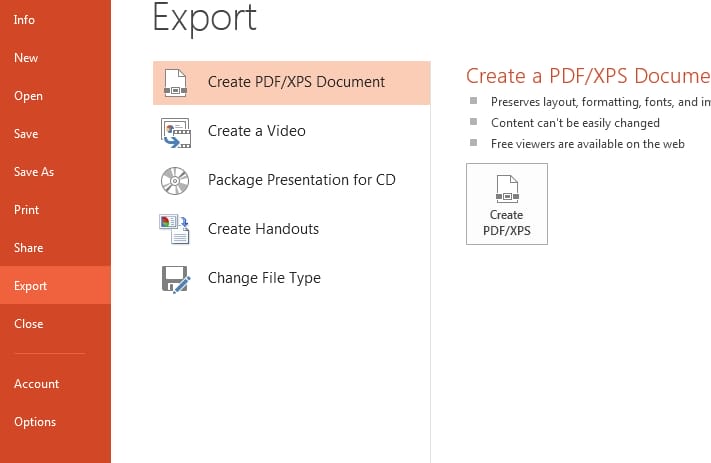
- Select Create a Video and then the Quality of the Video ie. Computer & HD Displays, Internet & DVD or Portable Devices.
- Check the timing and select the appropriate time spent on each slide. Then click create video. The file will be saved as MP4 format.

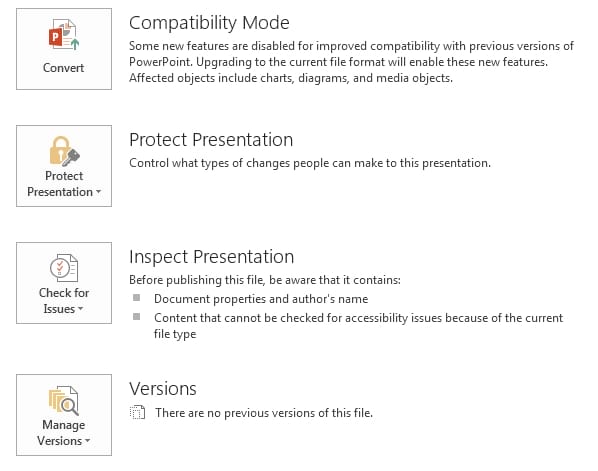
NOTE: If you’re using an template or file that was saved in pre-2013 then you may need to change the file compatibility. To do this follow these steps:
- Click File
- Click Info
- Click Compatibility Mode and save the file as a different name
How do I play Audio in the background?
Adding Audio to your presentation is pretty much the same as the previous versions of powerpoint. However, if you need to set the audio to play in the background of all your slides then here’s the instructions:
- Click Insert
- Click Audio
- Click Audio on My PC and select the audio file

- You will see the following object in the slide
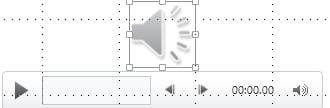
- Select the image and click Playback on the top menu ribbon bar under Audio Tools
- If you need to select Start Automatically, Play Across Slides, and Loop Until Stopped

How do you stop playing the background Audio at a particular slide?
This was quite tricky to work out. I spent a few hours trying to figure this out. Here’s what you need to do if you want to stop the background audio at a particular slide:
- Click Animations on the top ribbon menu
- Click Animation Pane

- Select the name of the audio file and then select Timing
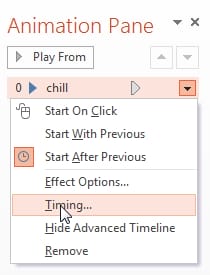
- Click Effect
- Click Stop Playing section
- Click After xxx (the slide number you want the audio to stop after)

How do you change the theme font?
I was really lost for this one, fortunately I managed to work it out after reading some old posts relating to Powerpoint 2010. Here’s what you need to do:
- Click on View

- Click on Slide Master
- Select the heading or title you want to change and select the font
Yes, that’s it. If you have any other tips and tricks please let me know.

Marco / admin / 30 Nov
Writing day to day ramblings about making money, business, technology, sharing awesome deals and everything else that I know I'll forget. Follow my personal blog https://marcotran.com.au
I've recently also turned Vegan and started this website Veggie Meals - check it out
"When technology speaks for itself, that is art" - MT
Affiliate Compensated: there are some articles with links to products or services that I may receive a commission.
OTHER ARTICLES YOU MAY LIKE

USE FUSEBASE TO AUTOMATE TEAMWORK AND COLLABORATION
If your business is growing, your team is juggling too many moving parts, and your client communication is spread across email threads, chat apps, documents, task boards, and endless follow ups, there is a good chance the real problem is not effort but fragmentation. Most businesses do not lose time because people are lazy. They […]
read more
USING REAP FOR VIDEO CLIPS
Short form video is now one of the most effective ways to reach new audiences, grow brand awareness, and turn long form content into a steady stream of social media assets. For creators, marketers, consultants, educators, and business owners, the challenge is rarely a lack of content. The real problem is time. Editing long videos […]
read more