
How to extract vdmk files from Veeam backups
May 28, 2014 / by Marco / Categories : Software, Technology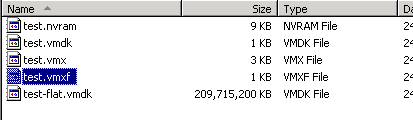
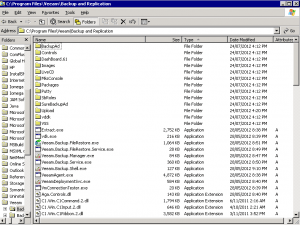
Veeam is a great Windows tool to create and restore VM (Virtual Machine) backups. The file extension for Veeam backups is vbk and inside this file are the VM ware files such as vdmk, vmfx, and nvram. In order to extract the vmdk file you need to use a tool called “Extract” which can be found with the Veeam program files folder located here: C:\Program Files\Veeam\Backup and Replication\Extract.exe
VEEAM BACKUP RESTORE
Here’s an example that I used to perform the restore. In this example we will use the file name test.vbk:
Microsoft Windows [Version 5.2.3790]
(C) Copyright 1985-2003 Microsoft Corp.
C:\Documents and Settings\Administrator>”C:\Program Files\Veeam\Backup and Replication\Extract.exe”
Enter path to VBK backup file:
>F:\test.vbk
VM Name ——————– Size/State — Date —– Host Name ————
test 200 GB 05/23/2014 192.168.1.230Enter VM name (press ENTER to restore all VMs):
>Enter output directory (press ENTER to use the current directory):
>F:\veeam restore
Proceed with restore? Press Y to continue.
To restore these VMs you can use the following command line:
C:\Program Files\Veeam\Backup and Replication\Extract.exe -restore “F:\test.vbk” “F:\veeam restore”Press ENTER to abort.
y Restoring file: test.vmx
0%======================50%======================100%
*****************************************************Restoring file: test.vmxf
0%======================50%======================100%
*****************************************************Restoring file: test.nvram
0%======================50%======================100%
*****************************************************Restoring file: test.vmdk
0%======================50%======================100%
*****************************************************Restoring file: test-flat.vmdk
0%======================50%======================100%
*****************************************************test is restored
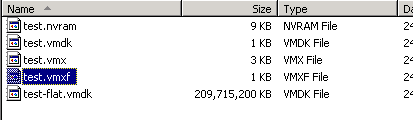
Here’s a screenshot of the extracted files.
NOTE: Depending the size of your VM, you may need to have lots of storage to perform backups and restores.
Our Sponsors
- Advertise Me Pty Ltd

Digital Signage Solutions


Marco / admin / 30 Nov
Writing day to day ramblings about making money, business, technology, sharing awesome deals and everything else that I know I'll forget. Follow my personal blog https://marcotran.com.au
I've recently also turned Vegan and started this website Veggie Meals - check it out
"When technology speaks for itself, that is art" - MT
Affiliate Compensated: there are some articles with links to products or services that I may receive a commission.
OTHER ARTICLES YOU MAY LIKE
USE FUSEBASE TO AUTOMATE TEAMWORK AND COLLABORATION
If your business is growing, your team is juggling too many moving parts, and your client communication is spread across email threads, chat apps, documents, task boards, and endless follow ups, there is a good chance the real problem is not effort but fragmentation. Most businesses do not lose time because people are lazy. They […]
read more
USING REAP FOR VIDEO CLIPS
Short form video is now one of the most effective ways to reach new audiences, grow brand awareness, and turn long form content into a steady stream of social media assets. For creators, marketers, consultants, educators, and business owners, the challenge is rarely a lack of content. The real problem is time. Editing long videos […]
read more
Join our subscription list and receive these deals right in your mailbox. If you like to receive some of our Freebies then subscribe now!

