How to create CRON jobs (Scheduled Tasks) in WAMP
August 9, 2014 / by Marco / Categories : Technology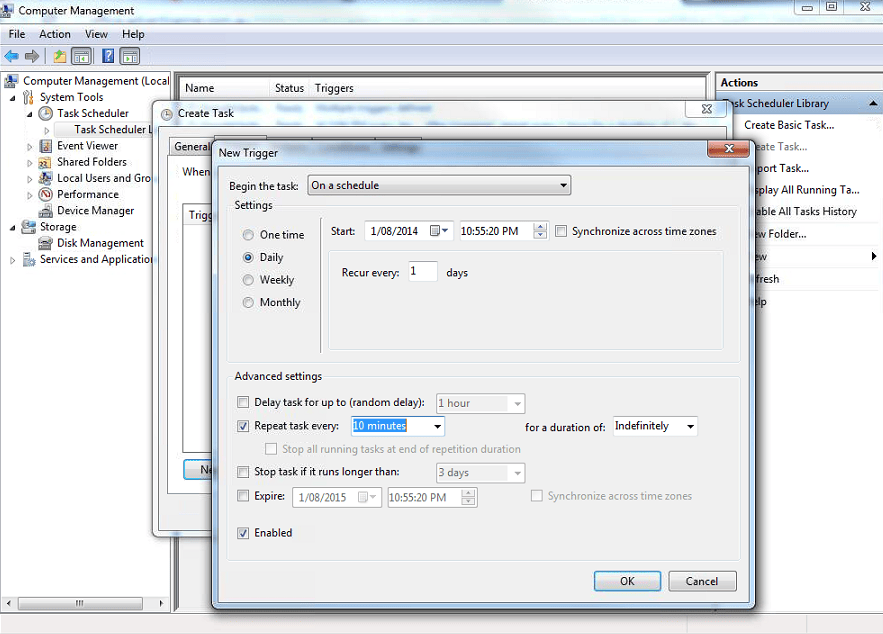
What is WAMP?
WAMP is a Windows based web development platform that allows you to create web applications with Apache2, PHP and MySQL. It is basically a package that you run on your Windows OS and it will turn the device into a web server.
What is a CRON job?
Ok, so CRON jobs is something that you would find in Unix system. On a Windows based system it’s actually called Scheduled Tasks. I find Windows scheduled tasks to be much easier to setup than CRON jobs but they do exactly the same thing. They run a task in the background at a specified internal.
In this post I will only detail the steps required to create a scheduled task for a web application running on WAMP.
ADD folder Path for PHP.exe
Click Start
Right Click Computer – Properties
Click Advanced system settings
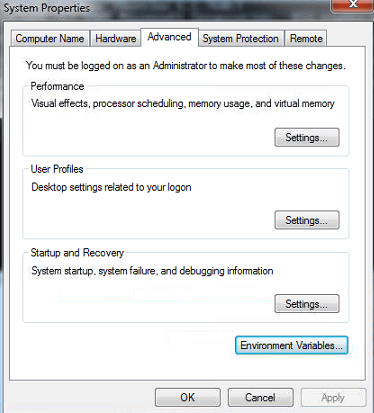
Click Environment variables
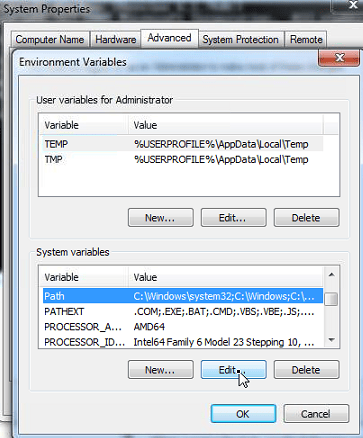
At the end of the line add:


C:\wamp\bin\php\php5.5.12Check to make sure the php.exe file exists in that folder. You may have a different folder name depending on the version of php.
Make sure you include the semi quotation marks ;
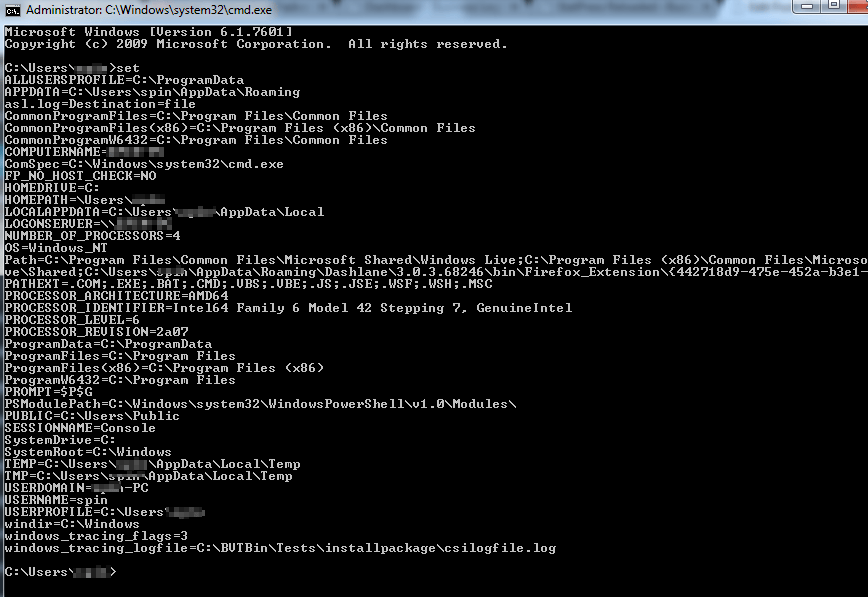
To verify to make sure it worked just open up the command prompt and type
setThis will display all your variables and you should see the php folder listed. Something like this:
BATCH FILE
Create a batch file (open up a text editor like notepad and make sure you save the file as cron.bat. If the filename is cron.bat.txt then this is not a batch file)
@echo off
REM -----
REM Created By Business Legions www.businesslegions.com/blog
REM Cron job in WAMP
php -f C:\wamp\www\abc.php
You can also download the attached example.

To run a specific page to trigger certain events use the following syntax
For executing a file:
php -f C:\wamp\www\abc.php
For downloading a file you will need to get the windows based version of wget.
http://sourceforge.net/projects/gnuwin32/postdownload?source=dlp
Install the software and then add the path:
C:\Program Files (x86)\GnuWin32\bin
To the environment variables – see above steps
For executing a website:
all you need to do is add the program script
“C:\Program Files (x86)\Google\Chrome\Application\chrome.exe”
CREATE SCHEDULED TASK
Click Start
Right Click on Computer and select Manage
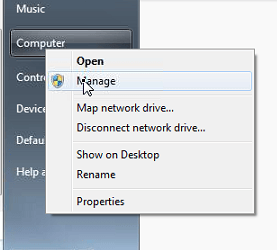
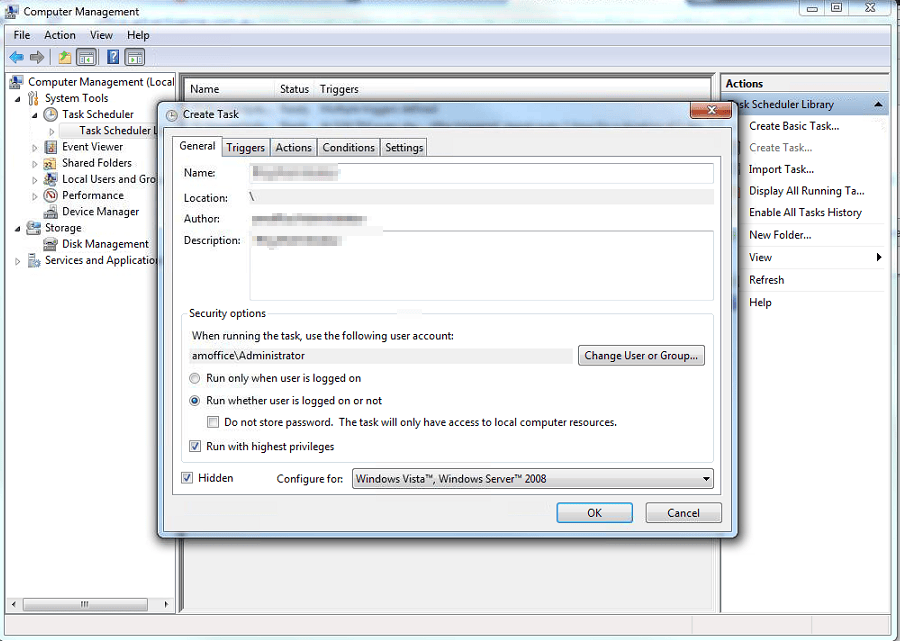
In System Tools, Expand Task Scheduler and Click on Task Scheduler Library. Create a new task:
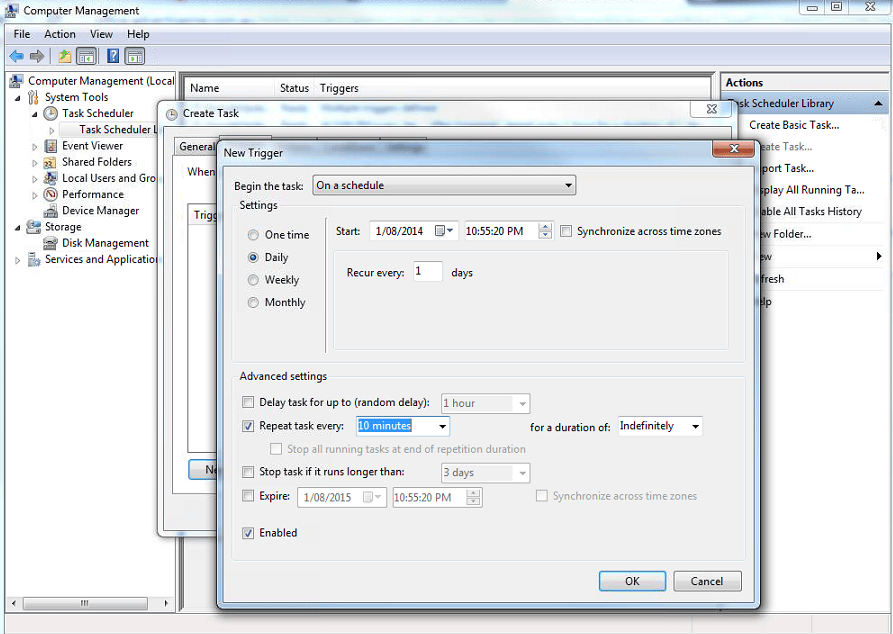
Set the Trigger settings eg frequency.
Set the action. In this particular example browse to the cron.bat file.
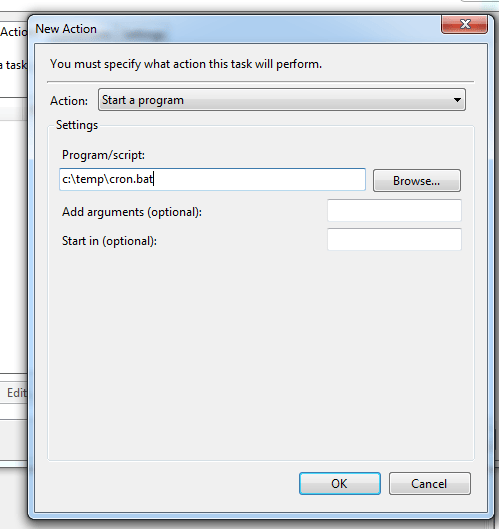
The conditions and settings tabs are pretty much optional. Click ok and then the task will run based on the frequency you set.
It should say running next to the task name.
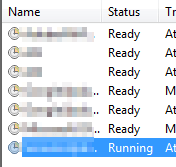
That’s it. The cron job will now run.
SILENT BAT
UPDATE: If you don’t want to have the Command window popup you can run the batch file within a Visual Basic script. To do this follow these steps:
Create a new file called cron.vbs and put in the following text. Replace the C:\Scheduled Jobs\cron.bat with the location of your batch file.
Then in the task scheduler for the Action, select the file cron.vbs instead of the cron.bat file. This will run the batch file silently.
Below is the cron.vbs file.

Our Sponsors
- Advertise Me Pty Ltd

Digital Signage Solutions


Marco / admin / 30 Nov
Writing day to day ramblings about making money, business, technology, sharing awesome deals and everything else that I know I'll forget. Follow my personal blog https://marcotran.com.au
I've recently also turned Vegan and started this website Veggie Meals - check it out
"When technology speaks for itself, that is art" - MT
Affiliate Compensated: there are some articles with links to products or services that I may receive a commission.
OTHER ARTICLES YOU MAY LIKE

REVIEWING AND UNBOXING THE TOOCKI USB-C RIGHT ANGLE 1.2M CABLE
USB C cables are among the most ordinary accessories we own, yet they can make a surprisingly noticeable difference to how comfortable our devices are to use while charging. The Toocki USB C right angle cable is a good example of a simple accessory that tries to solve a very common irritation, because instead of […]
read more
SUPABASE BACKUP TUTORIAL: USE DBEAVER TO EXPORT YOUR DATABASE SAFELY
If you are building anything serious on Supabase, whether that is a client portal, a SaaS app, an internal dashboard, or even a small side project that is starting to get traction, having a reliable database backup process is one of those tasks that quickly moves from optional to essential. Supabase makes a lot of […]
read more