How to create Cron Jobs in Zpanel
August 23, 2014 / by Marco / Categories : Technology, Wordpress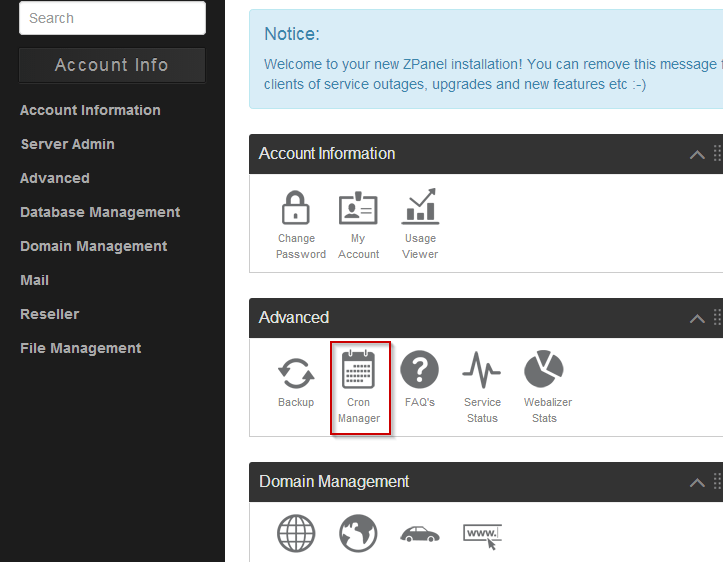
I’ve been using Zpanel for the past year and it’s a free Open Source Tool similar to Cpanel. Instead of paying $10 a month for using Cpanel, Zpanel is the free alternative. There are limited features with using Zpanel, for example it doesn’t have the option (One Click Install) to install WordPress, Joomla or the other open source packages. You need to do this manually. I found creaing Cron Jobs in Zpanel a little bit more difficult compared to Cpanel. But here’s what I had to do.
STEPS: CRON JOB IN ZPANEL
1. Create the php script. Here’s an example to trigger a php file hosted on your website:


<?php
$sUrl = "http://www.businesslegions.com/script.php";

$rCh = curl_init($sUrl);
curl_setopt($rCh, CURLOPT_USERAGENT, "Mozilla/5.0 (Windows NT 6.1; WOW64; rv:11.0) Gecko Firefox/11.0");
curl_setopt($rCh, CURLOPT_RETURNTRANSFER, 1);
curl_setopt($rCh, CURLOPT_NOBODY, 1);
curl_setopt($rCh, CURLOPT_CONNECTTIMEOUT, 0);
curl_setopt($rCh, CURLOPT_SSL_VERIFYPEER, false);
curl_setopt($rCh, CURLOPT_SSL_VERIFYHOST, false);
curl_exec($rCh);
curl_close($rCh);
?> 5. Enter the location and name of the script, for example /public_html/cron/script.php Enter a comment or a description of the script 6. Select when the script will be executed. The options are: Every 1 minute Every 5 minutes Every 10 minutes Every 30 minutes Every 1 hour Every 2 hours Every 8 hours Every 12 hours Every 1 day Every week Every month
 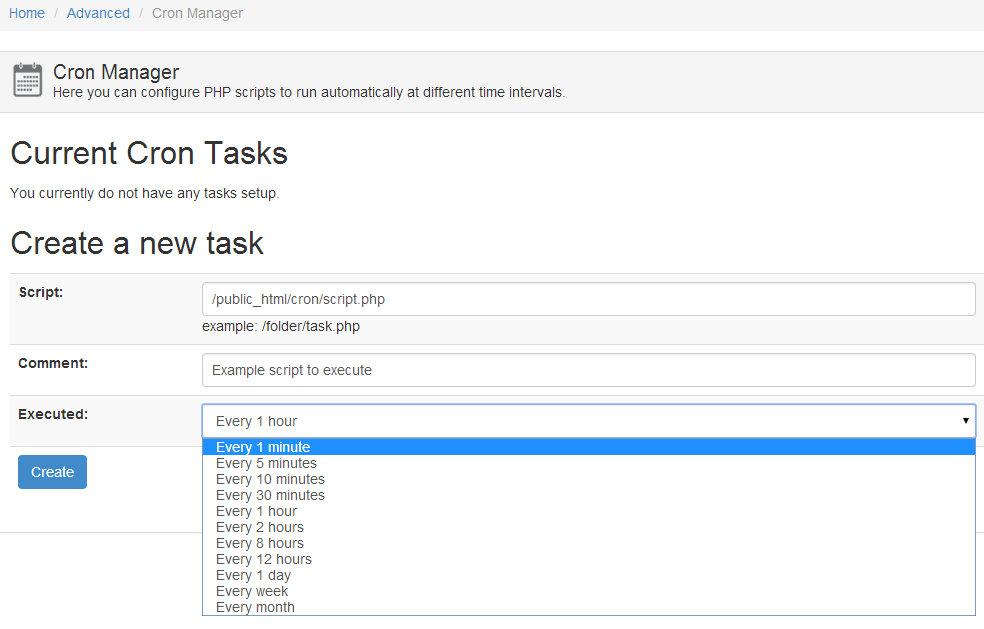 7. Click create NOTE: If you run into a problem saying that the System Cron file could not be created then login to your server and issue this command:
 chmod -R 777 /var/spool/croncrontab -u apache -lANOTHER ALTERNATIVE
I found that the php script that I use to trigger a website doesn’t really work when you execute a zpanel script. What I ended up doing is modifying the crontab script by using: crontab -u apache -e I deleted the commands that was generated by Zpanel and replaced it with my own
0,30 * * * * wget -q -O /dev/null “http://www.businesslegions.com/trigger”
If you are not sure about the timer settings then have a look at this reference guide: http://en.wikipedia.org/wiki/Cron
That’s it. If there’s anything that I missed please let me know.
Our Sponsors
- Advertise Me Pty Ltd

Digital Signage Solutions


Marco / admin / 30 Nov
Writing day to day ramblings about making money, business, technology, sharing awesome deals and everything else that I know I'll forget. Follow my personal blog https://marcotran.com.au
I've recently also turned Vegan and started this website Veggie Meals - check it out
"When technology speaks for itself, that is art" - MT
Affiliate Compensated: there are some articles with links to products or services that I may receive a commission.
OTHER ARTICLES YOU MAY LIKE

USE FUSEBASE TO AUTOMATE TEAMWORK AND COLLABORATION
If your business is growing, your team is juggling too many moving parts, and your client communication is spread across email threads, chat apps, documents, task boards, and endless follow ups, there is a good chance the real problem is not effort but fragmentation. Most businesses do not lose time because people are lazy. They […]
read more
USING REAP FOR VIDEO CLIPS
Short form video is now one of the most effective ways to reach new audiences, grow brand awareness, and turn long form content into a steady stream of social media assets. For creators, marketers, consultants, educators, and business owners, the challenge is rarely a lack of content. The real problem is time. Editing long videos […]
read more