I needed to delete the TightVNC IP Addresses from the drop down list and decided to write them down before I forget.

Here are the steps I did to delete the history from TightVNC on a Windows Operating System:
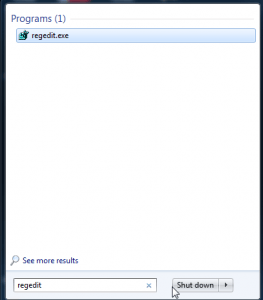
- Open up the command prompt or in the search box type REGEDIT

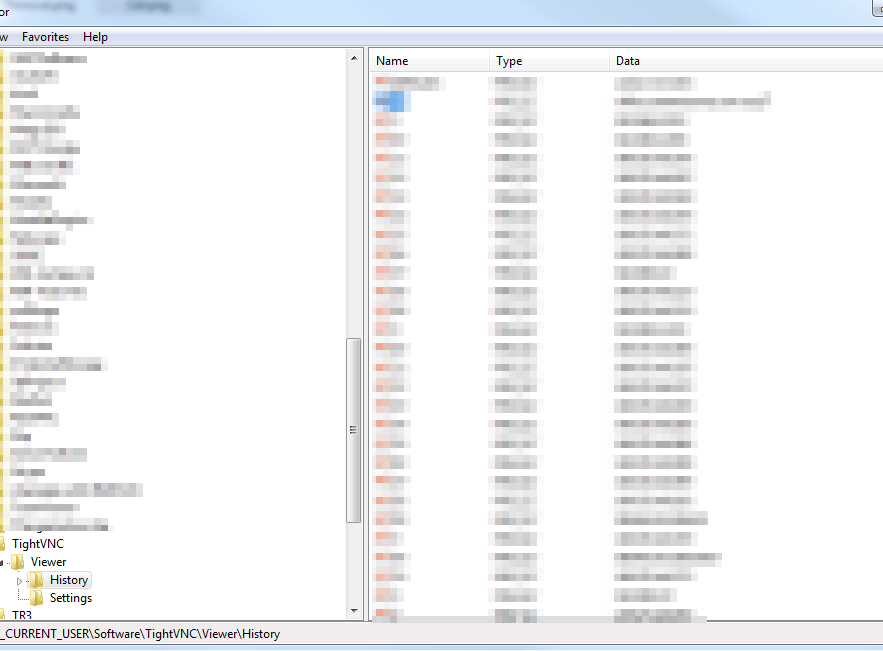
- Now click on Computer – HKEY_CURRENT_USER – Software – TightVNC – Viewer – History and on the left hand side you will see all the entries. Select them all and click on delete

- Then start TightVNC and you will notice there entries have been removed.
NOTE: Be careful when deleting entries from the registry editor. Always perform a backup of the registry.

Marco / admin / 30 Nov
Writing day to day ramblings about making money, business, technology, sharing awesome deals and everything else that I know I'll forget. Follow my personal blog https://marcotran.com.au
I've recently also turned Vegan and started this website Veggie Meals - check it out
"When technology speaks for itself, that is art" - MT
Affiliate Compensated: there are some articles with links to products or services that I may receive a commission.
OTHER ARTICLES YOU MAY LIKE

EASY TYRE PRESSURE SENSOR RESET TUTORIAL | RENAULT KOLEOS & SIMILAR CARS
If you have recently adjusted your tyres, topped up the air pressure, or seen a warning appear on your dashboard, knowing how to reset the tyre pressure monitoring system on a Renault Koleos can save you time and unnecessary worry. The process is quite straightforward once you know where to look in the vehicle menu, […]
read moreHOW TO USE GOOGLE WORKSPACE STUDIO FLOW IN GMAIL FOR SMART EMAIL AUTOMATION
Google keeps slipping new productivity features into Workspace, and sometimes the most useful ones are the tools you almost discover by accident while checking email. That is exactly the case with Studio Flow, a feature that has started appearing inside Gmail and wider Google Workspace environments, and it looks like Google is pushing further into […]
read more