FINALLY FIXED PLAYBACK JITTER IN WONDERSHARE FILMORA 15.2.8
February 10, 2026 / by Marco / Categories : Business, Technology, wordpress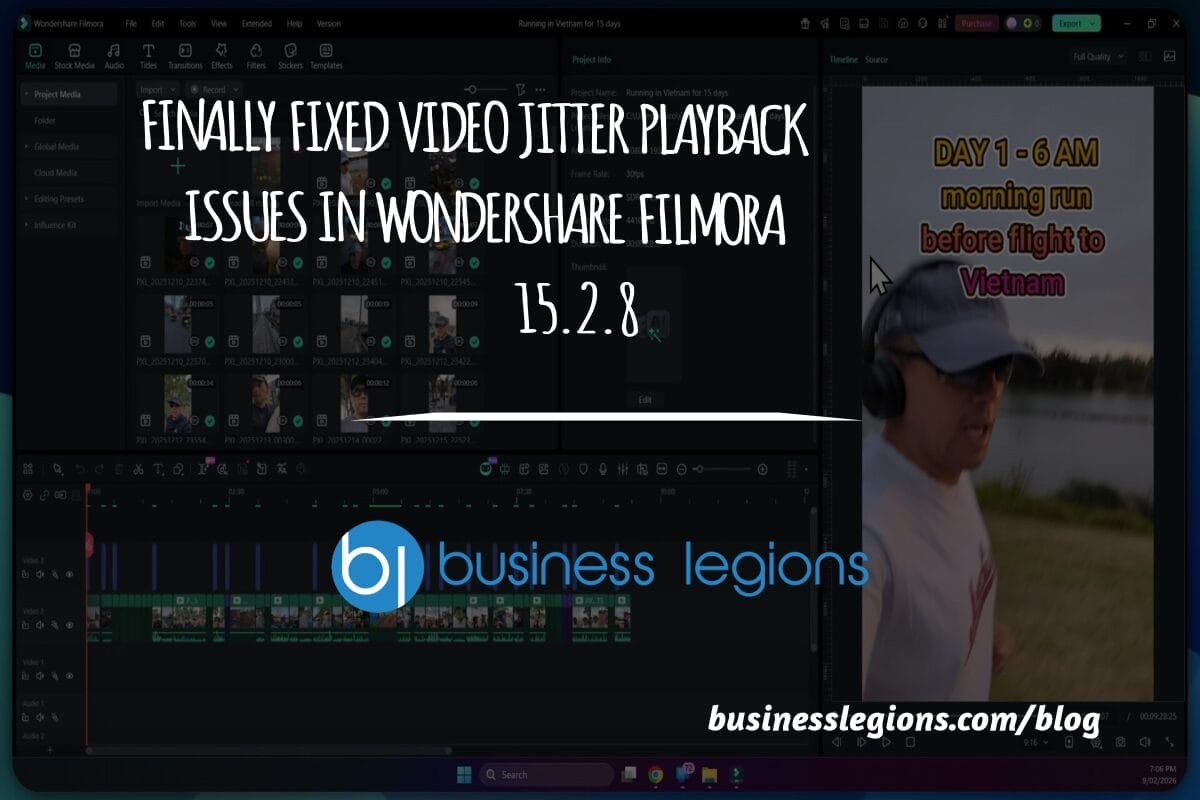
There are few things more frustrating than watching your timeline stutter and jitter when you simply want smooth, accurate playback while editing. If you have been wrestling with choppy previews in Wondershare Filmora, the good news is that the latest release has made a meaningful change. The jitter issue that has plagued many creators has finally been addressed, and it is now reliable in version 15.2.8. In this article, I will walk through what jitter is, why it matters, how Filmora has fixed it, the exact settings you need to enable, and a set of practical tips to get the most from your system. I will also show how to verify the fix and what to try if you still see hiccups.

What playback jitter looks like and why it breaks your flow
Playback jitter is the visible judder or uneven motion you see when previewing clips on the timeline. Instead of consistent frame advancement, the image might pause briefly, then jump, or skip frames altogether. This makes it difficult to judge timing, transitions, text placement, or colour grading decisions because you are not seeing motion as it will appear in the exported file. For editors who assemble fast paced sequences, this can lead to misaligned cuts and missed beats. Even for slower edits, jitter can mask fine details, such as micro movements in interviews or delicate changes in exposure and contrast. Smooth playback is essential for confidence during editing, and any inconsistency is a mental tax that slows your creative process.
The causes of jitter can be complex. It might originate from variable frame rate footage commonly captured on smartphones, long Group of Pictures compression in certain codecs that is demanding to decode, high resolution or high bit rate files that push the system, or a mismatch between project settings and media. Over time, Filmora has improved its decoding pipeline, but some builds did not fully resolve these interactions. The solution in this release targets the core playback engine by enabling robust hardware acceleration and optimising how the timeline requests frames.

Earlier versions versus the new build
Many editors tried a range of builds to see if jitter could be eliminated. Some improvements were noted, but a full cure was elusive. The version that finally clears the issue is 15.2.8. If you previously tried an update and were disappointed, do not give up on the fix. The change appears to be in the connection between the playback canvas and the hardware accelerated decoding path, which reduces CPU contention and delivers frames to the viewport with far more consistent timing.
The benefit is immediate once the correct preference is toggled. As soon as you enable hardware acceleration for playback and press play, you should notice that the timeline moves smoothly, even with multiple clips layered or moderate effects applied. The dreaded stutter that was common when scrubbing fast or previewing complex sections becomes a non issue. Below, I will show exactly where to find this setting and what to do if your machine configuration needs a bit of care.

Confirm you are on Filmora 15.2.8
Before changing anything, make sure your installation is up to date. The fix is tied specifically to version 15.2.8. Open Filmora and check the version number in the About section or use the built in updater. If you are on an earlier build, run the update and restart. This ensures you have the updated playback engine and the revised performance controls.
If you work across multiple machines, it is important to update each one. Filmora projects carry settings for preview quality and rendering, but the playback engine lives inside the application and the graphics driver on your system. Consistency across machines reduces confusion when you move projects between devices.
Enable hardware acceleration for playback
Once you have updated, go to Preferences and then to the Performance tab. You will see options for hardware acceleration. The key setting is the one that governs playback. Toggle hardware acceleration for playback to on. This allows Filmora to use your graphics processor to decode and present frames, rather than relying solely on the main processor.
On Windows, this uses technologies such as Intel Quick Sync, NVIDIA hardware decoding, or AMD hardware video decode depending on your hardware. On macOS, it uses the system media engine that is integrated with Apple silicon or compatible discrete graphics. The aim is to shift the heavy lifting of decode away from the processor that is also managing effects, timeline logic, and background tasks, so frames arrive in a steady rhythm.

With the setting applied, return to your timeline and press play. Listen for your fans and watch the playback. You should see a notable improvement in smoothness. If your timeline contains multiple layers of video, titles, and colour adjustments, the improvement may be even more visible because the decoding of each frame now fits better into the available time between compositing steps.

In practice, this means you can judge cuts with confidence. Scrubbing becomes responsive, and you do not need to render preview sections nearly as often just to check pacing. It also reduces the stop start feeling that can creep in when you add background music or sound effects that rely on precise alignment with video cues.

Why hardware acceleration changes the game
Video playback is a pipeline. Compressed frames must be read from disk, decoded into raw images, colour managed, composited with effects and titles, and then sent to the playback display. If one step takes too long, the whole chain stalls and you see jitter. Hardware acceleration targets the decode step, which is often the most intensive, especially for formats like H.264 and H.265 with complex compression structures.
Graphics processors are designed for parallel work on images and can decode multiple reference frames quickly. When Filmora hands off decode to the graphics processor, the main processor has more headroom to manage effects and the timeline. This reduces contention where two heavy tasks compete for the same resource. It also lowers latency, because the graphics processor can keep a steady flow of frames ready in memory. The result is smoother motion and more consistent frame delivery to the preview canvas.
There are still limits. If your footage is extremely high resolution with a very high bit rate, or you add heavy effects on top, you may occasionally see a momentary dip. However, with hardware acceleration enabled, those dips are far less frequent, and in most everyday editing scenarios playback is now reliably smooth.
Best practice settings to maximise smooth playback
To make the most of the fix, combine hardware acceleration with sensible preview settings. Choose a preview quality that matches your machine. If you have a mid range laptop, dropping the preview quality one notch can maintain perfect smoothness while editing, without changing your export quality. On desktops with ample power, full quality previews will be fine.
Make sure your graphics driver is current. Windows users should use the official drivers from NVIDIA or AMD or Intel. On macOS, driver updates arrive with system updates. Keeping the driver current ensures full compatibility with Filmora’s acceleration path.
Match project frame rate to your footage. If most of your clips are at 24, 25, or 30 frames per second, set the project accordingly. Filmora can handle mixed frame rates, but a consistent project baseline helps the playback engine predict and schedule frames.

Extra steps for even smoother editing
While the core jitter fix will help most users, a few additional techniques can make your timeline feel silky.
- Create proxies for very heavy footage. Proxies are lower resolution stand ins that play back more easily while you edit. Filmora can generate proxies automatically for unsuitable clips, and will swap back to full resolution on export.
- Render preview for complex sections. If you stack effects, transitions, or titles, render that portion so you can judge the look without any strain on the system.
- Close background tasks. Browsers, cloud sync, and other creative programmes can consume memory and processor time. Freeing resources helps maintain a consistent frame cadence.
- Use consistent media. Footage with variable frame rate from some phones can behave oddly. If you see issues, transcode that clip to a constant frame rate using a high quality intermediate codec before import.
- Keep your media on a fast drive. Solid state storage ensures frames arrive quickly to the decoder. Avoid external drives with slow interfaces when editing high resolution files.
- Clear cache occasionally. If you update Filmora or swap projects frequently, clearing preview and cache files can remove old data that might interact poorly with new builds.
Taken together, these tips make editing feel responsive and predictable, so you can focus on storytelling rather than wrestling with the machine.
Testing the fix on different footage types
It is a good idea to test the new setup on the kinds of clips you use most. If you shoot interviews at 25 frames per second on mirrorless cameras, load a long clip and scrub through to check for smoothness at different speeds. If you work with action footage at higher frame rates, drop those clips in and add motion effects to ensure playback remains stable. If you combine captured screen recordings with camera footage, test that mix as well. The current fix handles varied inputs gracefully, but the confidence that comes from your own test lies at the heart of a comfortable editing experience.
Also try a sequence with colour correction and a few effects layered, then press play and watch for consistency. The new version maintains smooth playback even when temporal effects are added, thanks to the improved scheduling between decode and compositing. If you notice any small hiccup, adjust preview quality one notch and retest. Most users find the sweet spot quickly.

Troubleshooting if you still see jitter
If you have updated to 15.2.8 and enabled hardware acceleration for playback and you still notice jitter, work through a few checks.
- Verify the setting stayed on. Some programmes turn settings off after a crash or a driver reset. Confirm in Preferences that the option remains enabled.
- Update your graphics driver. Outdated drivers can limit the decoder or cause timing anomalies. Install the latest driver from your vendor and restart the system.
- Match project settings to your main footage. If your project is at 30 frames per second but most clips are at 25, playback may feel uneven. Align the base frame rate.
- Transcode variable frame rate clips. Use a tool to convert those clips to constant frame rate and reimport them into the project.
- Reduce preview quality temporarily. If the system is under load, a small drop in preview quality can restore smoothness without any impact on the exported result.
- Test without background applications. Close other creative apps, browsers, and heavy services. Even small periodic spikes in usage can manifest as micro stutter.
- Try a fresh project. Create a new project and import a single clip to rule out any project level quirk. If that plays smoothly, the issue may be specific to the previous project setup.
If none of these steps resolve the issue, consider resetting Filmora preferences or reinstalling the application. In rare cases, lingering configuration files from previous builds can stand in the way of a clean playback experience. The majority of users will not need to go that far, but it is worth mentioning as a final measure. You can also reach out to support with a short description of your system and a sample clip.
A smoother edit in Filmora 15.2.8
Filmora 15.2.8 is a solid step forward for everyday editors who want reliable, smooth playback. With hardware acceleration for playback enabled in Preferences, the timeline finally behaves as you expect. Cuts are precise, scrubs are responsive, and visual decisions are easier because you see true motion in the preview window. Combine this fix with sensible preview quality, updated drivers, proxy creation for heavy files, and consistent frame rate media to achieve a dependable, fluid editing experience.
If you have been waiting for the jitter to be resolved before tackling larger projects, now is a great time to jump back in. Update to 15.2.8, enable the performance setting, and press play. You should notice the difference immediately.
If this guide helped, give it a like and subscribe to the channel for more practical tips and fixes. Sharing your experience can also help other editors who are experiencing the same issue. Smooth playback is not a luxury. It is the foundation of confident editing. Enjoy the upgrade and keep creating.

Marco / admin / 30 Nov
Writing day to day ramblings about making money, business, technology, sharing awesome deals and everything else that I know I'll forget. Follow my personal blog https://marcotran.com.au
I've recently also turned Vegan and started this website Veggie Meals - check it out
"When technology speaks for itself, that is art" - MT
Affiliate Compensated: there are some articles with links to products or services that I may receive a commission.
OTHER ARTICLES YOU MAY LIKE

EASY TYRE PRESSURE SENSOR RESET TUTORIAL | RENAULT KOLEOS & SIMILAR CARS
If you have recently adjusted your tyres, topped up the air pressure, or seen a warning appear on your dashboard, knowing how to reset the tyre pressure monitoring system on a Renault Koleos can save you time and unnecessary worry. The process is quite straightforward once you know where to look in the vehicle menu, […]
read moreHOW TO USE GOOGLE WORKSPACE STUDIO FLOW IN GMAIL FOR SMART EMAIL AUTOMATION
Google keeps slipping new productivity features into Workspace, and sometimes the most useful ones are the tools you almost discover by accident while checking email. That is exactly the case with Studio Flow, a feature that has started appearing inside Gmail and wider Google Workspace environments, and it looks like Google is pushing further into […]
read more