HOW TO USE SPLIT VIEW IN GOOGLE CHROME
March 11, 2026 / by Marco / Categories : Business, Google, Software, Technology
Google Chrome is full of useful features that many people never notice until they appear by accident during everyday browsing. One of those quietly helpful tools is Split View, a feature that makes it much easier to work with two tabs side by side in the same browser window. If you regularly compare documents, read from one page while writing in another, or simply want a more organised way to multitask, this feature can make your workflow feel much smoother.
What makes Split View especially helpful is its simplicity. Instead of dragging separate windows around your desktop and resizing them manually, Chrome lets you place two tabs together inside one window. That means less clutter, quicker navigation, and a more focused way to work.
Finding the Split View option
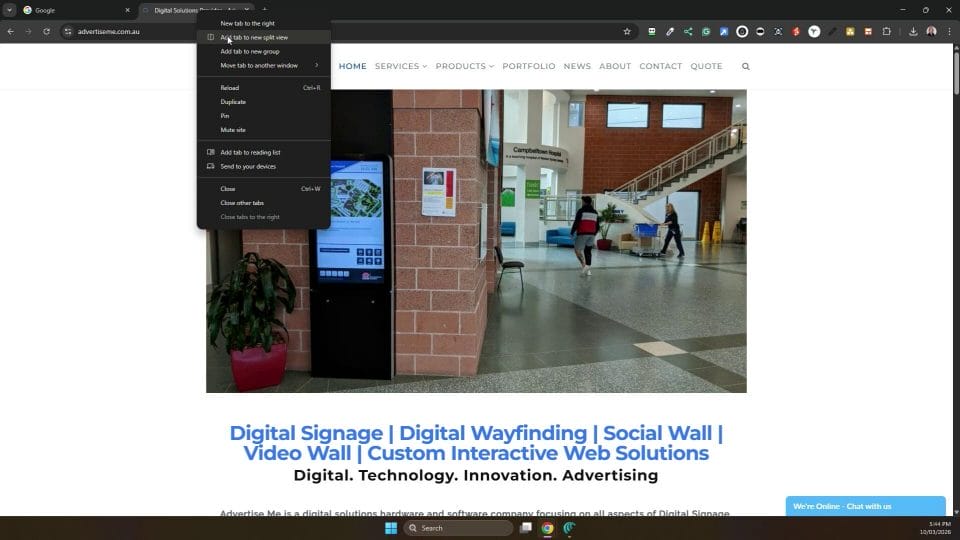
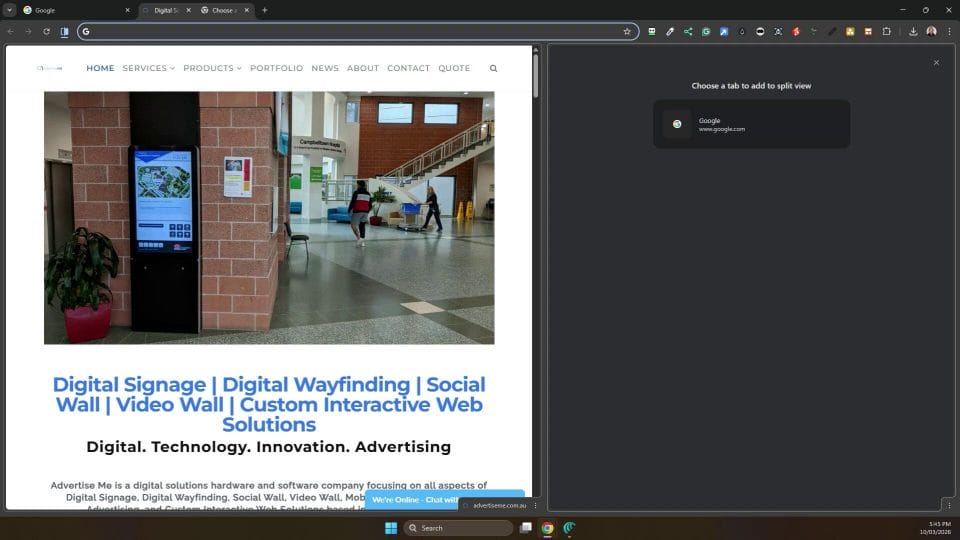
To get started, open Google Chrome and right click on any tab at the top of the browser. In the menu that appears, look for the option to add the tab to a new Split View. Once selected, Chrome instantly divides the window into two sections, placing different tabs side by side.
This is a small feature, but it can have a big impact. Many users are familiar with splitting application windows on their desktop, but having this built directly into Chrome feels more natural when your work is happening entirely in the browser. It removes several steps and keeps everything contained in one place.
Working with two tabs in one window
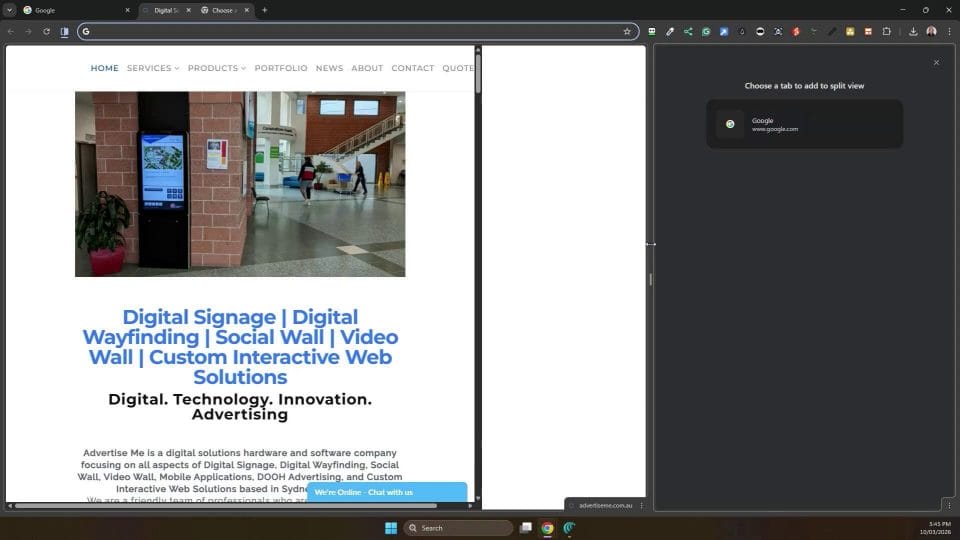
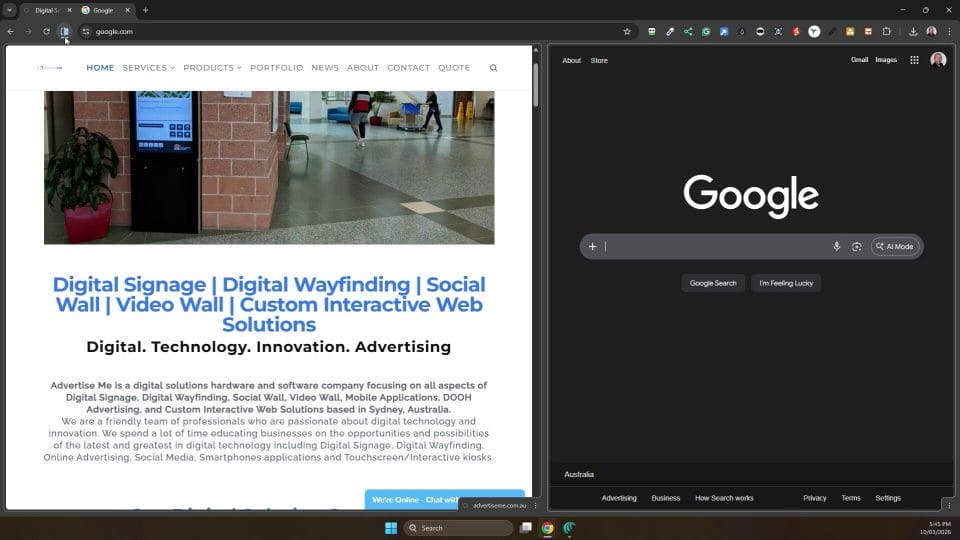
Once Split View is active, you can see two tabs displayed within the same Chrome window. You are not locked into the original pairing either. On one side, you can choose from your other open tabs and switch the content you want to view. This makes the feature much more flexible than a simple one time split.
For example, you might keep a research source open on one side while reviewing notes on the other. You could compare pricing pages, read two versions of a document, or check a calendar while replying to emails. Because both views remain visible, you spend less time switching back and forth and more time actually getting things done.

Adjusting and arranging the layout
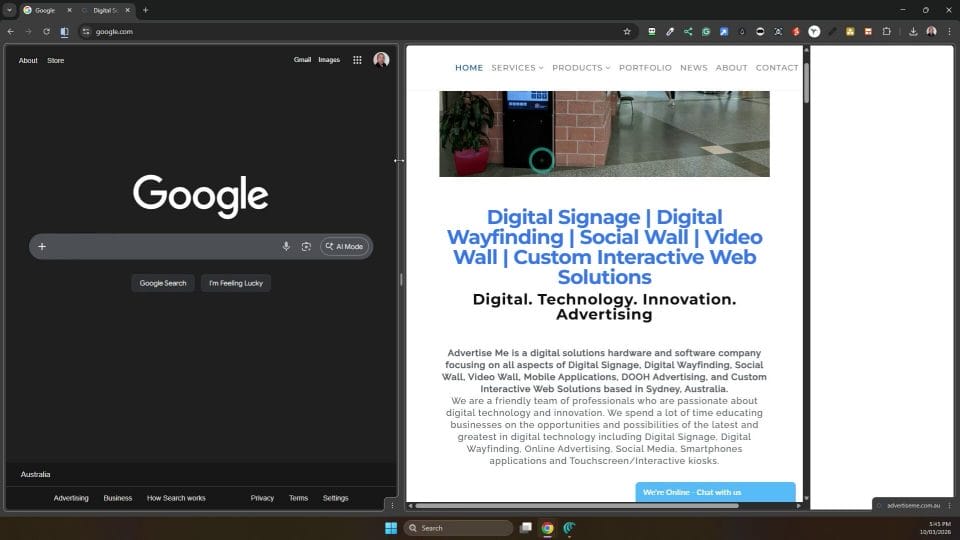
One of the best parts of Chrome Split View is that it is not fixed. You can drag the divider between the two tabs to give more space to the side that needs it most. If one page contains detailed text and the other only needs occasional reference, you can quickly rebalance the layout to suit the task.
Chrome also adds a dedicated icon for arranging the Split View. This gives you a few practical controls. You can separate the view if you want the tabs to stop sharing the same window, reverse the layout so each tab swaps sides, or close one of the panes entirely. These options make the feature feel polished rather than experimental.

Why this feature is worth using
Split View is particularly useful for students, researchers, office workers, and anyone who spends long periods inside a browser. It reduces the friction of multitasking and helps maintain concentration by keeping related content together. Rather than juggling overlapping windows, you get a cleaner and more efficient browsing experience.
If you have never noticed this option before, it is well worth trying the next time you need to compare information or work from two pages at once. Sometimes the most valuable browser features are not the most heavily advertised ones, but the ones that quietly save time every single day.

Marco / admin / 30 Nov
Writing day to day ramblings about making money, business, technology, sharing awesome deals and everything else that I know I'll forget. Follow my personal blog https://marcotran.com.au
I've recently also turned Vegan and started this website Veggie Meals - check it out
"When technology speaks for itself, that is art" - MT
Affiliate Compensated: there are some articles with links to products or services that I may receive a commission.
OTHER ARTICLES YOU MAY LIKE
HOW TO USE SPLIT VIEW IN GOOGLE CHROME
Google Chrome is full of useful features that many people never notice until they appear by accident during everyday browsing. One of those quietly helpful tools is Split View, a feature that makes it much easier to work with two tabs side by side in the same browser window. If you regularly compare documents, read […]
read more
Mootion in 2026: The Essential Tool for Social Media and Presentation Success
Mootion in 2026 revolutionizes social media and presentations with innovative features, enhancing engagement and visual storytelling for impactful communication.
read more