Google Drive for PC can’t see shared documents
September 14, 2012 / by Marco / Categories : Google
One of my colleagues just told me that he doesn’t like Google Drive for PC because he can’t view shared documents. That sounded strange to me and I eventually figured out the solution. Here’s the steps:
1. Right click on the Google Drive icon
2. Click preferences
3. Click Visit “Shared with Me” to sync shared items

4. Drag the files or folders shared with you to My Drive
5. Check your Google Drive folder (press F5 to refresh) and they should appear.

Marco / admin / 30 Nov
Writing day to day ramblings about making money, business, technology, sharing awesome deals and everything else that I know I'll forget. Follow my personal blog https://marcotran.com.au
I've recently also turned Vegan and started this website Veggie Meals - check it out
"When technology speaks for itself, that is art" - MT
Affiliate Compensated: there are some articles with links to products or services that I may receive a commission.
OTHER ARTICLES YOU MAY LIKE
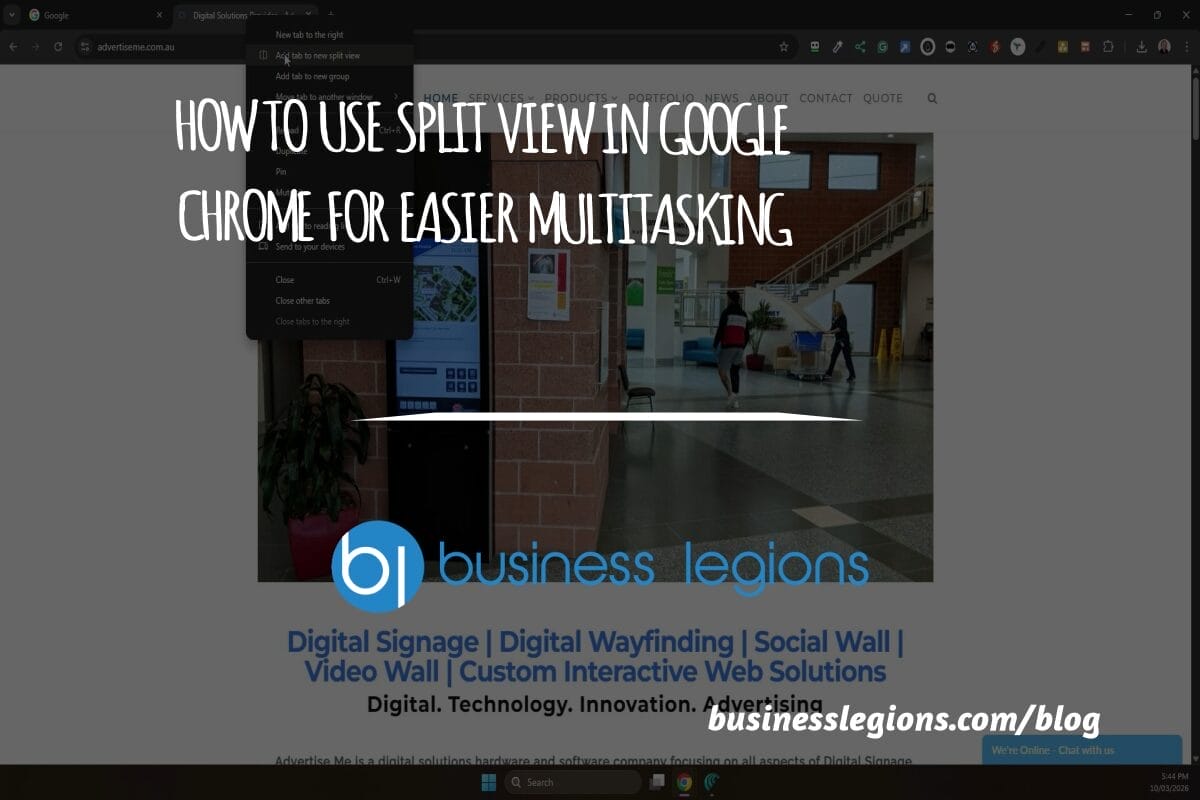
HOW TO USE SPLIT VIEW IN GOOGLE CHROME
Google Chrome is full of useful features that many people never notice until they appear by accident during everyday browsing. One of those quietly helpful tools is Split View, a feature that makes it much easier to work with two tabs side by side in the same browser window. If you regularly compare documents, read […]
read more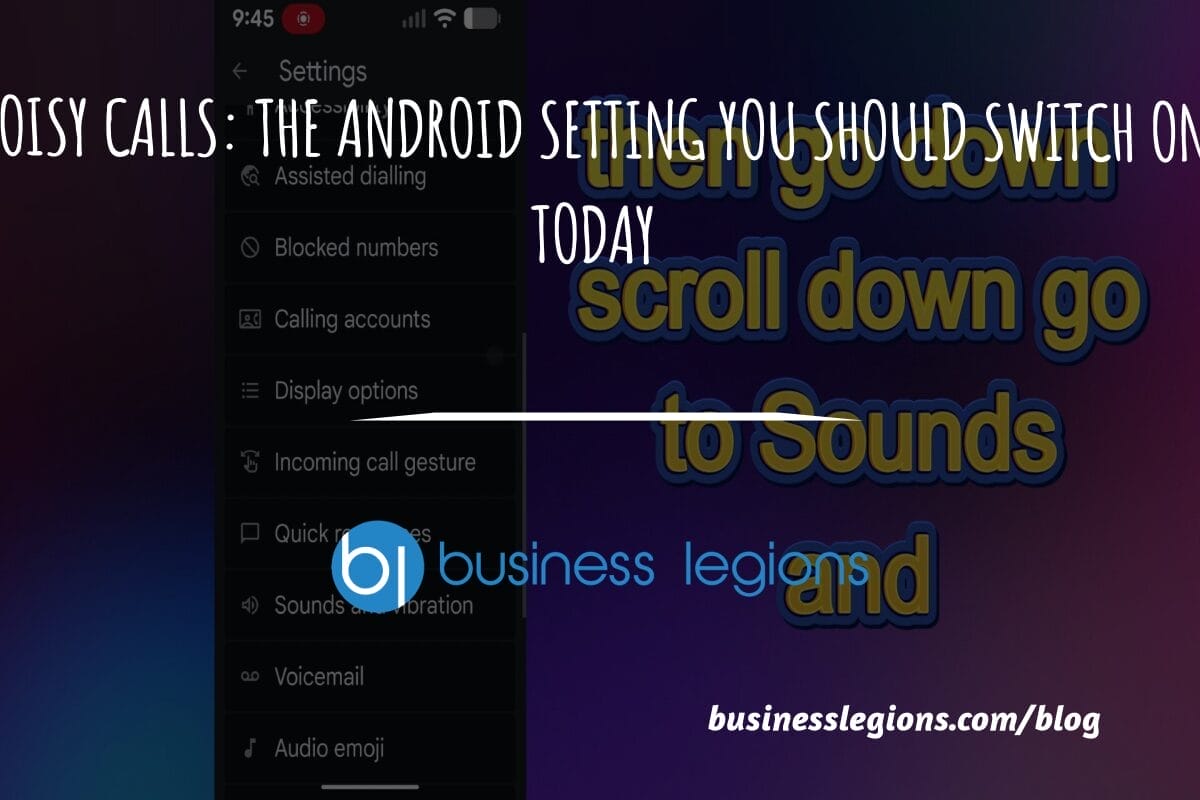
STOP NOISY CALLS: THE ANDROID SETTING YOU SHOULD SWITCH ON TODAY
Phone calls still matter. Whether you’re speaking to a client, checking in with family, or handling something urgent on the move, clarity can make or break the conversation. If you’ve ever found yourself apologising for the construction noise behind you, the wind across your microphone, or the café chatter muddling your words, there’s an Android […]
read more