Setting up the Samsung CLX-6220 with Gmail SMTP
October 23, 2012 / by Marco / Categories : Gmail, Hardware, Technology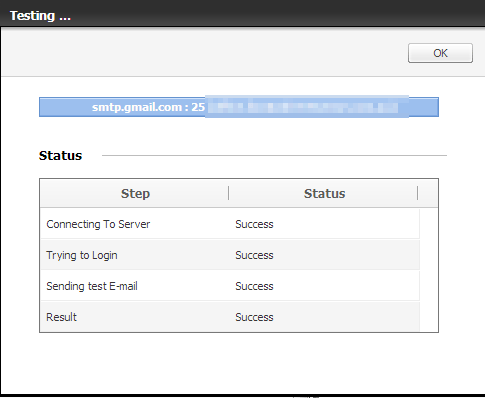
For some unknown reason, our business printer – the Samsung CLX-6220 lost it’s SMTP printer settings. This meant we were unable to scan a document and send this to an email address in the address book. The benefit of doing this is you can have a copy in your mailbox and also quickly forward scanned document to someone else.
I previously configured the printer, but forgot what the settings were so yep, I decided to blog about it so that I can have it documented.
Now, we use Google Apps as our email system – very awesome product by Google. Anyways, in order to set up your printer to use the Gmail SMTP server you need to make sure the printer is on your network. If you can’t get access to the printer web console then you have a problem. Fix that first.
Once you login to the embedded web server click on Settings.
Expand Network Settings
Click Outgoing Mail Server (SMTP)
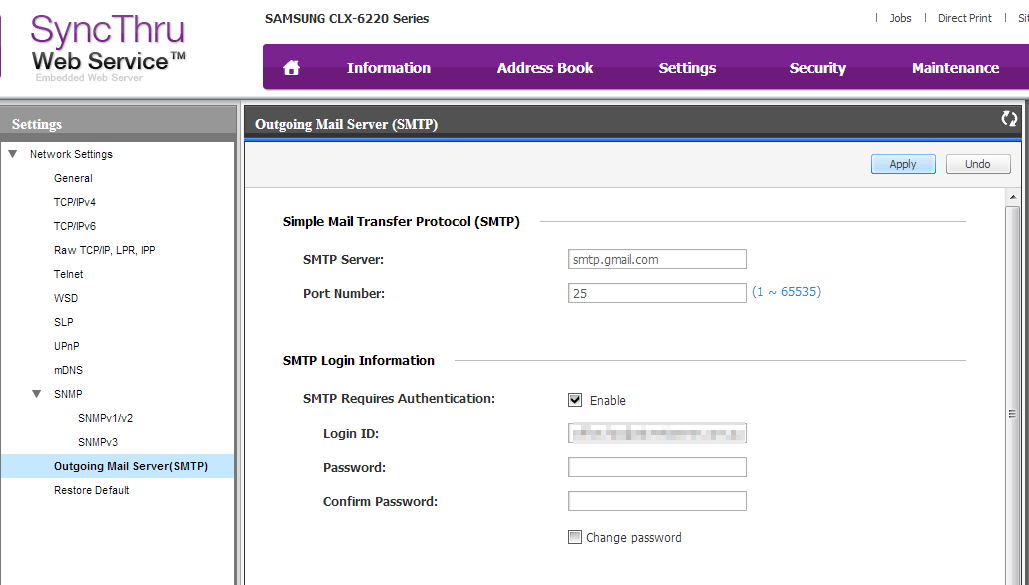
In the SMTP Server add: smtp.gmail.com
Port Number: 25
Click the SMTP Requires Authentication box
For the Login ID enter your email address you normally use to login to gmail.com
Enter and confirm your password.
At the bottom of the page make sure Secure E-mail Connection with SSL/TLS is ticked.
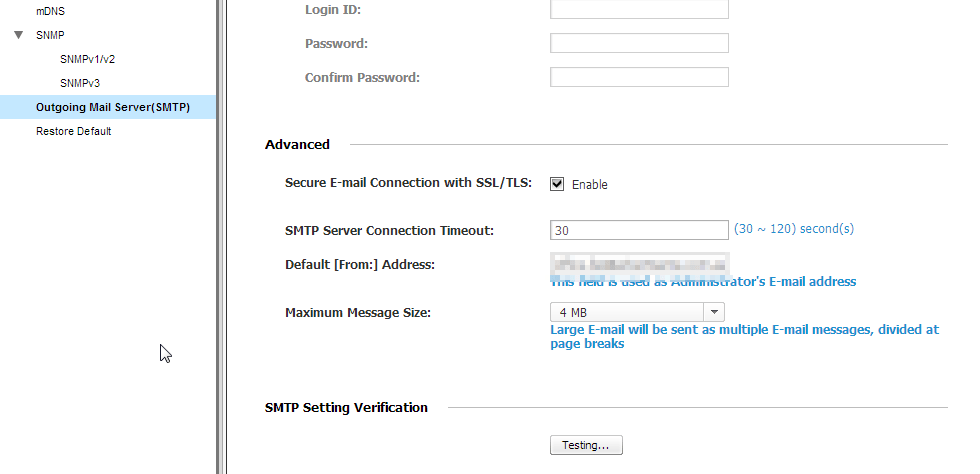
Also add the Default [From:] Address.
Once you’ve enter all the information click on the Testing… box
If it’s setup correctly, the status for all the tests will be Success, just like below.
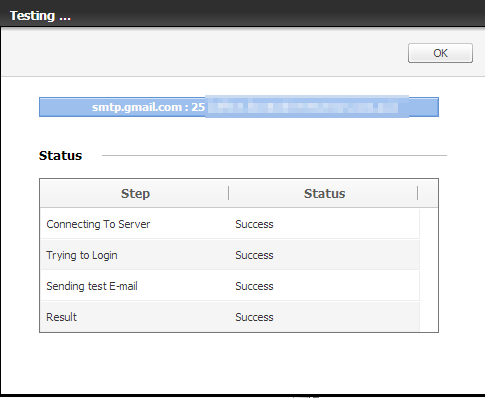
Go to the printer and test scanning to an email address.

Marco / admin / 30 Nov
Writing day to day ramblings about making money, business, technology, sharing awesome deals and everything else that I know I'll forget. Follow my personal blog https://marcotran.com.au
I've recently also turned Vegan and started this website Veggie Meals - check it out
"When technology speaks for itself, that is art" - MT
Affiliate Compensated: there are some articles with links to products or services that I may receive a commission.
OTHER ARTICLES YOU MAY LIKE
REVIEWING AND UNBOXING THE TOOCKI USB-C RIGHT ANGLE 1.2M CABLE
USB C cables are among the most ordinary accessories we own, yet they can make a surprisingly noticeable difference to how comfortable our devices are to use while charging. The Toocki USB C right angle cable is a good example of a simple accessory that tries to solve a very common irritation, because instead of […]
read more
SUPABASE BACKUP TUTORIAL: USE DBEAVER TO EXPORT YOUR DATABASE SAFELY
If you are building anything serious on Supabase, whether that is a client portal, a SaaS app, an internal dashboard, or even a small side project that is starting to get traction, having a reliable database backup process is one of those tasks that quickly moves from optional to essential. Supabase makes a lot of […]
read more