HOW TO CLONE HDD TO SSD WITH STEP BY STEP GUIDE IN 2023
November 22, 2023 / by Marco / Categories : Business, Software
This is a full guide on how to clone HDD to SSD with screenshots. The HDD to SSD cloning guide supplies Windows 11, Windows 10, Windows 8.1, and Windows 7 PC and laptops, the software you are going to use is EaseUS Disk Copy.
When computers start running slow, lacking disk space, and taking forever to boot, it’s time to upgrade the hard disk with a bigger HDD or faster SSD. Of course, if you have the budget, SSD is a better choice due to its excellent durability, speed, and reliability. To migrate Windows OS, data, applications and everything you want from an old HDD to a new SSD, EaseUS Disk Copy is an essential disk cloning tool for you to make a smooth transfer.
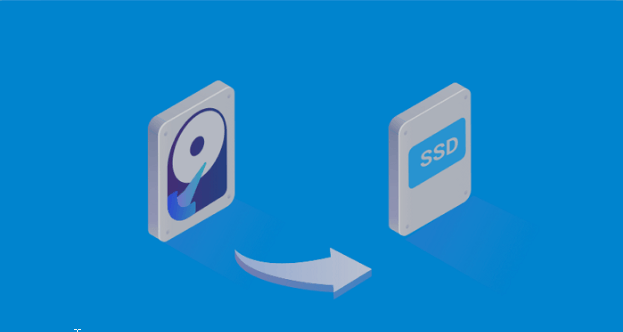
To clone an HDD to an SSD, you can follow the 9 steps.
Step 1. Backup your important data
Before you start cloning, it’s important to back up any important data on your HDD to an external drive or cloud storage.
Step 2. Choose a cloning software
There are many free and paid cloning software available. Some popular options are Clonezilla, Macrium Reflect, and EaseUS Disk Copy. This guide is based on using EaseUS Disk Copy
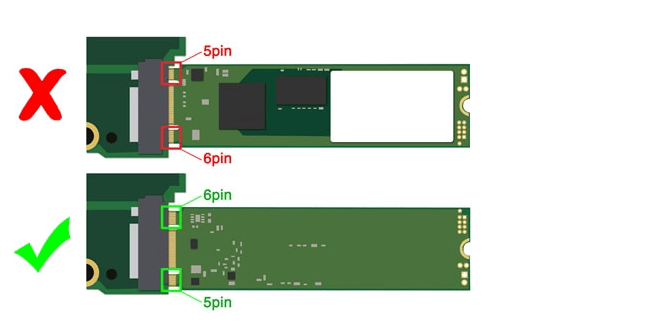
Step 3. Connect your SSD (SATA SSD and M.2 SSD)
Connect your new SSD to your computer using a USB adapter or an external enclosure. Make sure it’s recognized by your computer.
Figure 1. Connect SATA SSD
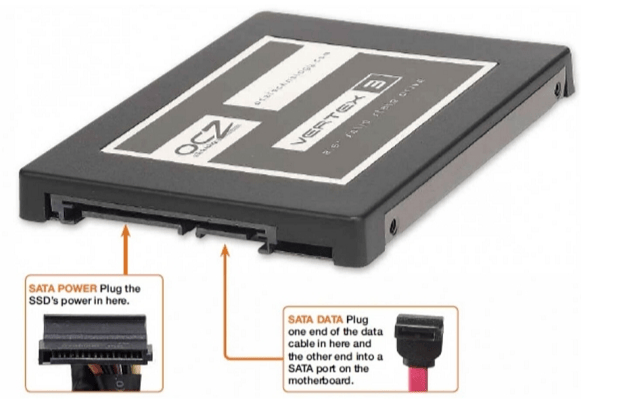
Figure 2. Connect M.2 SSD
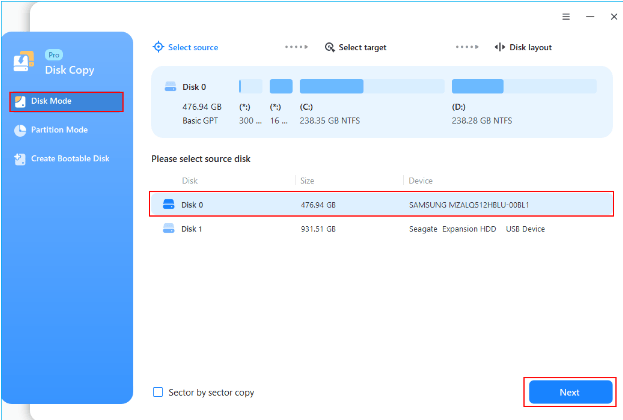
Step 4. Open the cloning software
Launch the cloning software and select the option to clone your HDD to the SSD.
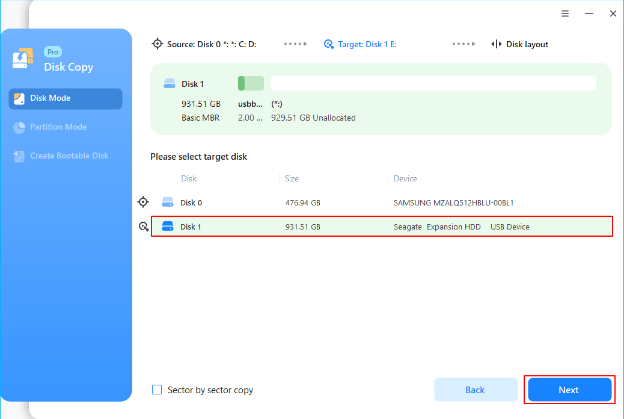
Step 5. Choose the source and destination drives
Select your HDD as the source drive and your SSD as the destination drive.
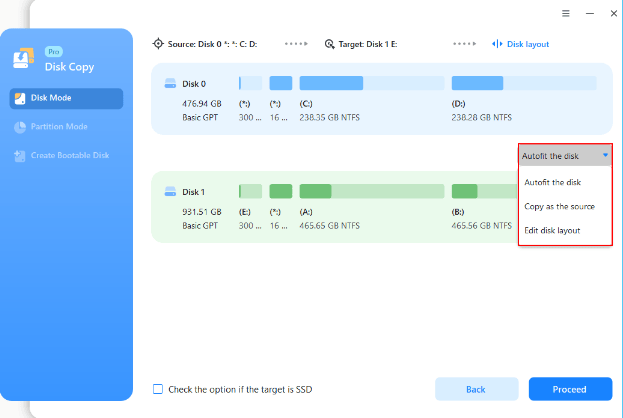
Step 6. Start the cloning process
Begin the cloning process and wait for it to complete. This process may take some time depending on the size of your HDD.
Step 7. Verify the cloned data
Once the cloning is complete, verify that all your data has been successfully transferred to the SSD.
Step 8. Swap the drives
Shut down your computer and swap out the old HDD for the new SSD. Make sure to disconnect the HDD and only connect the SSD.
Step 9. Boot up your computer
Power up your computer and make sure it boots up properly. If it does, congratulations! You’ve successfully cloned your HDD to an SSD.
Note: If your SSD is smaller than your HDD, you may need to delete some files from your HDD before cloning it to your SSD. Additionally, some cloning software may require you to adjust the partition sizes manually.
By following these steps, you should be able to successfully clone your HDD to your SSD with Disk Copy. However, it’s always a good idea to back up hard drive data before attempting any major changes to your system.

Marco / admin / 30 Nov
Writing day to day ramblings about making money, business, technology, sharing awesome deals and everything else that I know I'll forget. Follow my personal blog https://marcotran.com.au
I've recently also turned Vegan and started this website Veggie Meals - check it out
"When technology speaks for itself, that is art" - MT
Affiliate Compensated: there are some articles with links to products or services that I may receive a commission.
OTHER ARTICLES YOU MAY LIKE
REVIEWING AND UNBOXING THE TOOCKI USB-C RIGHT ANGLE 1.2M CABLE
USB C cables are among the most ordinary accessories we own, yet they can make a surprisingly noticeable difference to how comfortable our devices are to use while charging. The Toocki USB C right angle cable is a good example of a simple accessory that tries to solve a very common irritation, because instead of […]
read more
QUICK FIX TO CHANGE THE MAX SELL POWER TO LESS THAN 500W ON THE DEYE INVERTER
There are many reasons a home owner or installer might want to place a tight cap on how much solar power is exported to the public grid. Some households live under a strict export cap imposed by their local distribution network operator, others want to reduce export to focus on self consumption and battery charging, […]
read more