Have you noticed the Reading List option in Google Chrome? It’s located on the top right hand side of the Chrome bookmark bar and it seems to have appears after Google Chrome version 89. Most of you probably don’t know what it is or does so let me quickly explain.
Reading list is a new feature that lists articles you’ve saved to read later. I To save an article (or website page), just click the “star” button and the article will be added to your reading list, which you can find through the bookmarks menu.
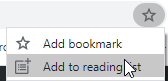
Then to save the article to the list, click on Add to reading list. It will then be displayed in the Reading List menu.
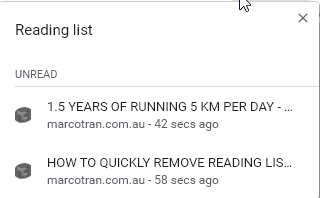
If you read the article you can mark it as read and it will be removed from the list.
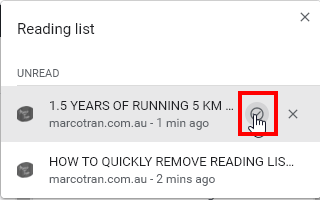
The article will then be moved into the Read section.
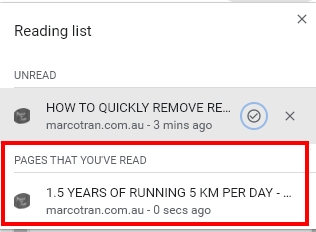
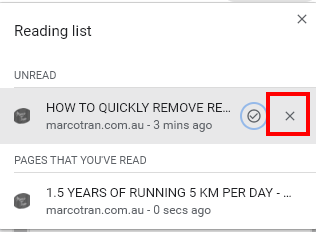
If you want to remove it permanently from the list click on the X.
Now will you be using this feature and I wonder how many people will be using it. If you’re like me you can remove this feature by following the instructions detailed in this article: HOW TO QUICKLY REMOVE READING LIST IN CHROME VERSION 89 AND VERSION 90
Here’s also a video showing you how to disable the Chrome Reading List. Hope it helps.

Marco / admin / 30 Nov
Writing day to day ramblings about making money, business, technology, sharing awesome deals and everything else that I know I'll forget. Follow my personal blog https://marcotran.com.au
I've recently also turned Vegan and started this website Veggie Meals - check it out
"When technology speaks for itself, that is art" - MT
Affiliate Compensated: there are some articles with links to products or services that I may receive a commission.
OTHER ARTICLES YOU MAY LIKE

USING THE LATEST CLAUDE MODEL TO BUILD GREAT TOOLS
If you have ever had an idea for a small tool but stopped because coding felt too hard, the latest Claude model makes that gap much smaller. You can now describe what you want in plain English, ask Claude to plan it, build the first version, improve the design, write the logic, test the workflow, […]
read more
REVIEWING AND UNBOXING THE TOOCKI USB-C RIGHT ANGLE 1.2M CABLE
USB C cables are among the most ordinary accessories we own, yet they can make a surprisingly noticeable difference to how comfortable our devices are to use while charging. The Toocki USB C right angle cable is a good example of a simple accessory that tries to solve a very common irritation, because instead of […]
read more