How do I remotely manage EPSON Projectors via LAN
May 26, 2014 / by Marco / Categories : Epson, Technology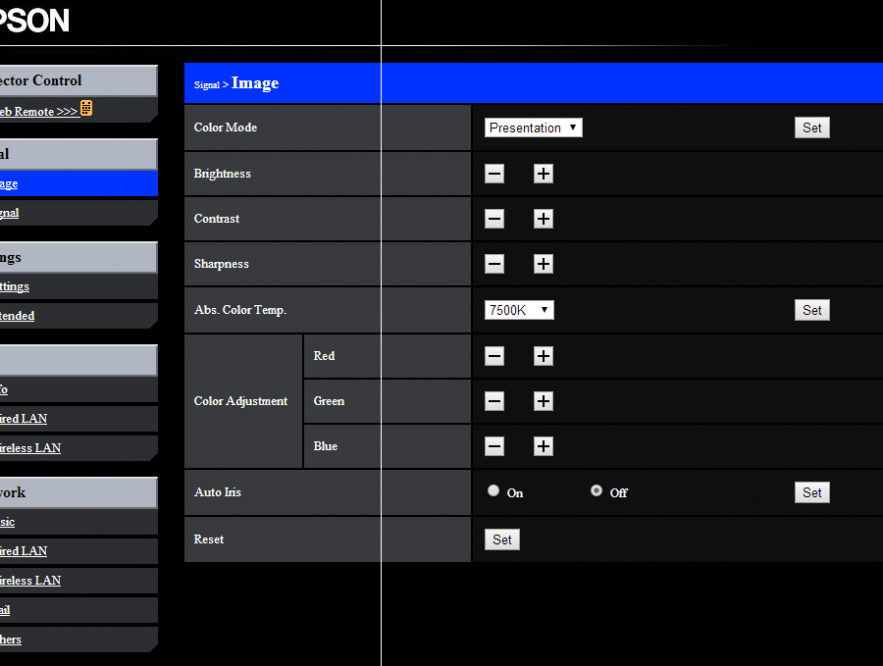
I’m playing around with an EPSON projector for a project and thought I’d better record some of the settings needed for being able to manage the EPSON projector over the network. Being able to remotely manage devices over the network is one of the greatest support tools available – it saves time and money.
EPSON PROJECTOR IP ADDRESS INFO
The EPSON projectors come with a built in web management tool which allows you to configure and manage the unit via the network. The first thing to do is plug a network cable. Then on the projector press MENU and select NETWORK.
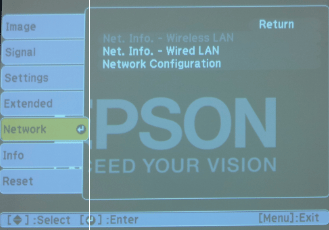
Then select Wired LAN:
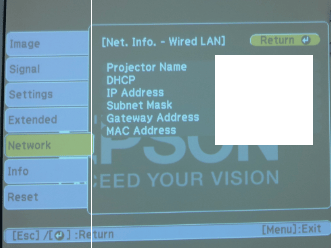
Record the IP Address information. You will need to use this to open the management website.
EPSON WEB REMOTE MANAGEMENT
Once you have the IP Address of the device then open up your web browser and type the IP Address. It will then direct you to the management page of the unit. 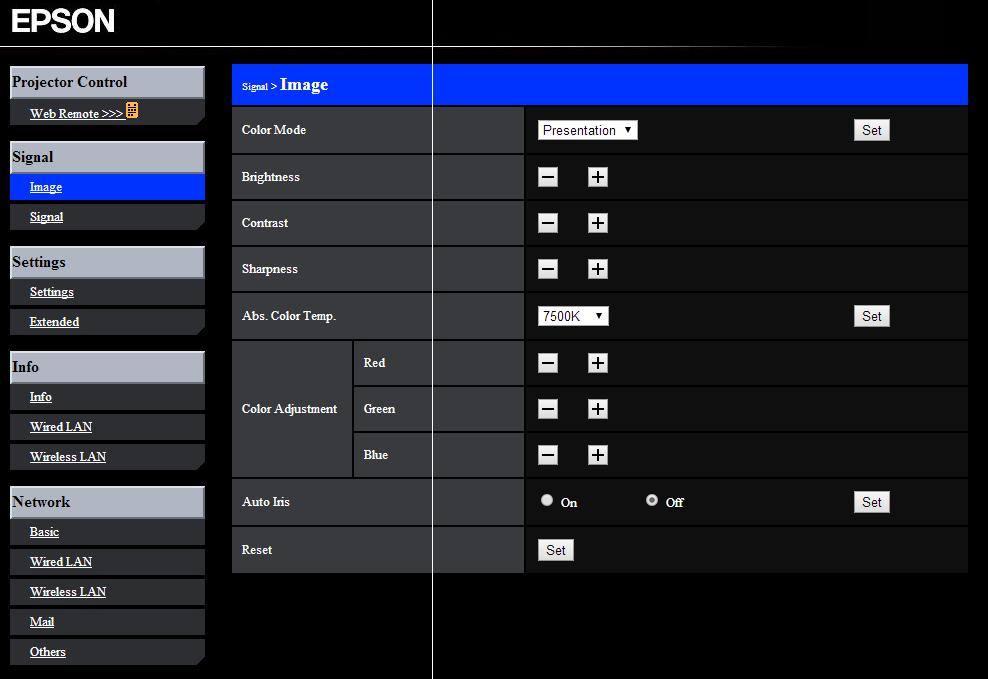
Click on the Extended settings and make sure that
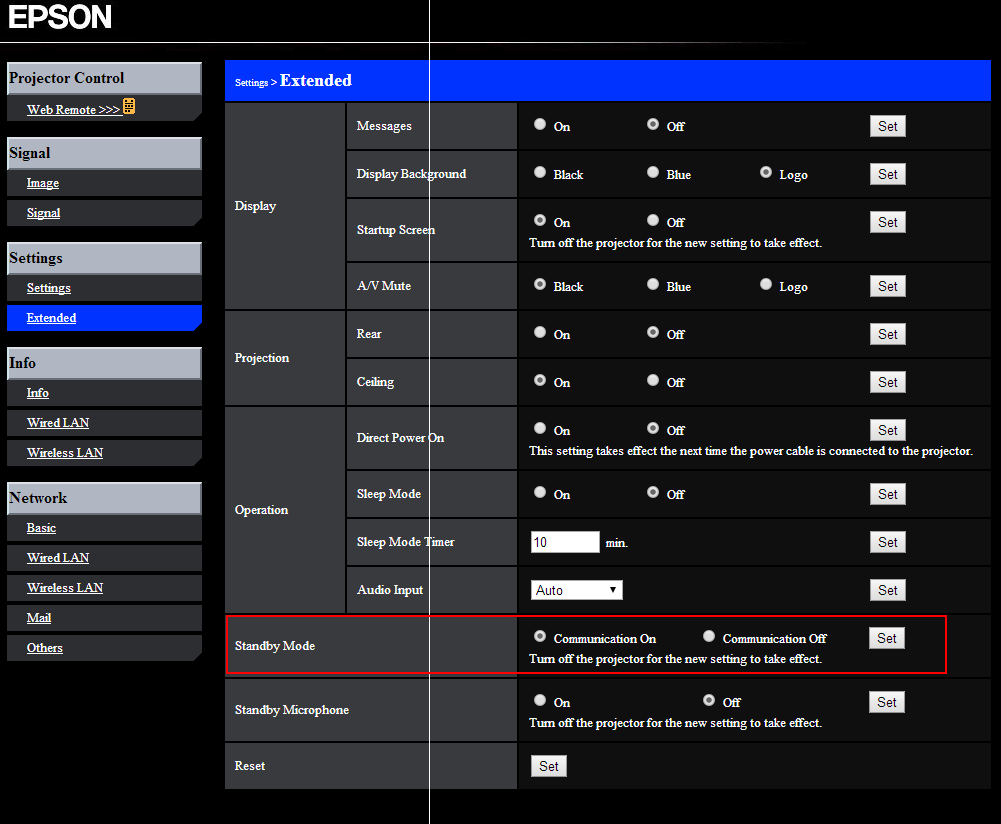
Make sure Standby Mode is selected to “Communication On”. This will allow you to still manage the unit remotely if it’s powered to standby. If this is turned off, then pressing the power on button remotely will not actually switch the projector on.
WEB REMOTE
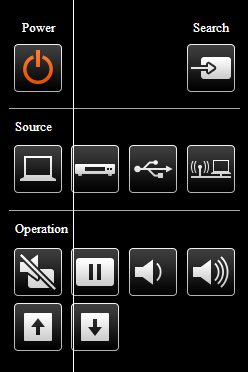
The cool thing about the EPSON projector has a web remote – just like a remote control you can press the virtual remote control buttons
EPSON EasyMP Monitor
The EPSON EasyMP Monitor is another great tool to remotely manage EPSON projectors on the network. You can download the EPSON EasyMP monitor tool from the Epson website. It also allows you to group projectors and manage them all via groups. To add a unit click on Edit then NEW. You have the option to manually or automatically. The control buttons are arranged at the top and there is an option to schedule to turn the projector ON or OFF.
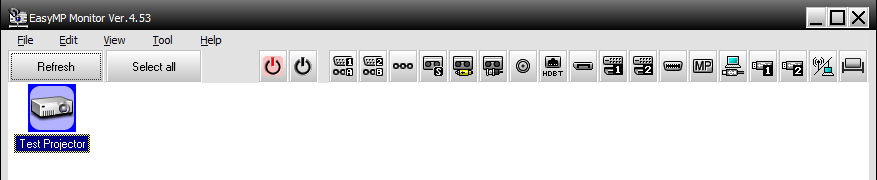
You can check the properties of the Projector.
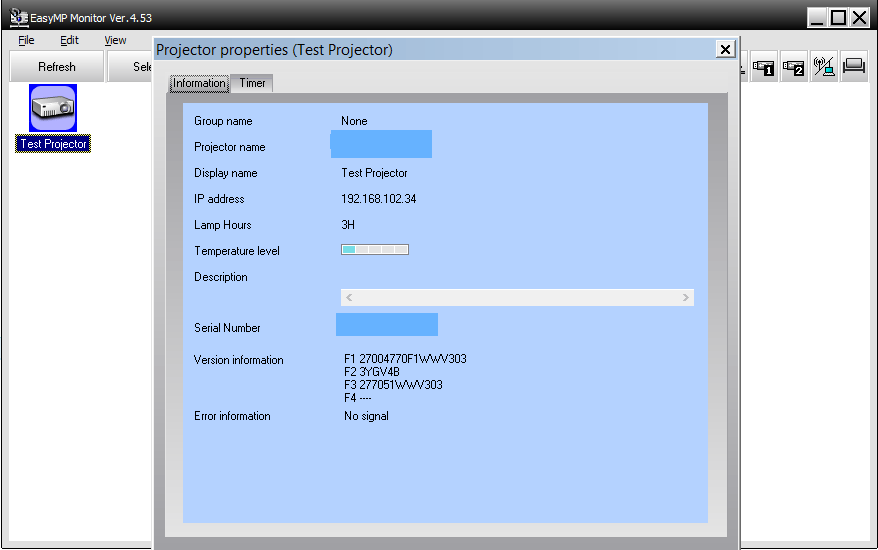
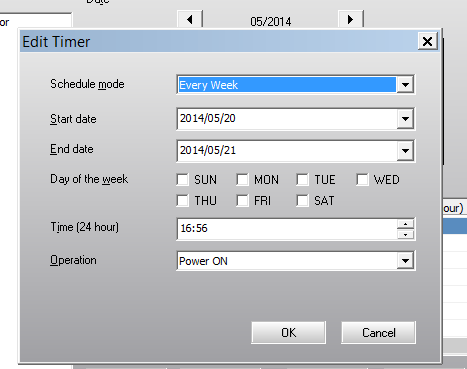
To schedule the projector click on Tool and then Timer and set when to turn ON and OFF the units.
SECURITY SETTINGS
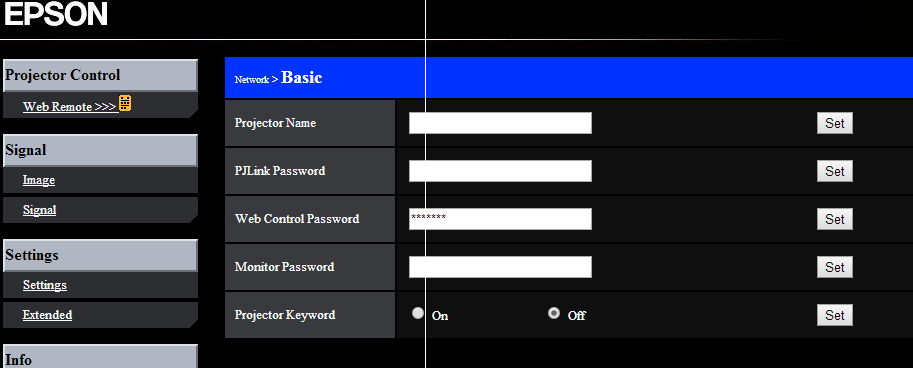
I thought it would also be worthwhile to add some security settings in this post. Like with any network device make sure you add or change the passwords. The EPSON projector also has the option to add a monitor password, which is required if you wanted to monitor the device.
There is also a lockout feature under Settings – Settings
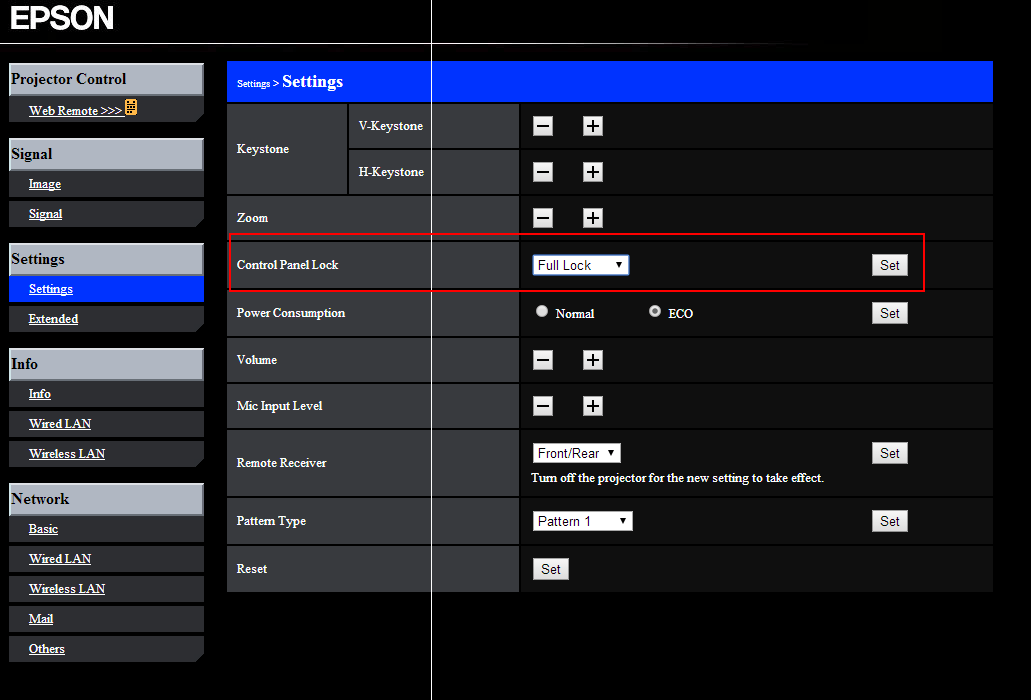
The FULL lock basically means all the buttons on the projector cannot be pressed. The Partial lock allows the user to at least press the ON and OFF button.
Our Sponsors
- Advertise Me Pty Ltd

Digital Signage Solutions


Marco / admin / 30 Nov
Writing day to day ramblings about making money, business, technology, sharing awesome deals and everything else that I know I'll forget. Follow my personal blog https://marcotran.com.au
I've recently also turned Vegan and started this website Veggie Meals - check it out
"When technology speaks for itself, that is art" - MT
Affiliate Compensated: there are some articles with links to products or services that I may receive a commission.
OTHER ARTICLES YOU MAY LIKE

USE FUSEBASE TO AUTOMATE TEAMWORK AND COLLABORATION
If your business is growing, your team is juggling too many moving parts, and your client communication is spread across email threads, chat apps, documents, task boards, and endless follow ups, there is a good chance the real problem is not effort but fragmentation. Most businesses do not lose time because people are lazy. They […]
read more
USING REAP FOR VIDEO CLIPS
Short form video is now one of the most effective ways to reach new audiences, grow brand awareness, and turn long form content into a steady stream of social media assets. For creators, marketers, consultants, educators, and business owners, the challenge is rarely a lack of content. The real problem is time. Editing long videos […]
read more