Fix for Problem installing Maldetect
May 8, 2015 / by Marco / Categories : Technology, Websites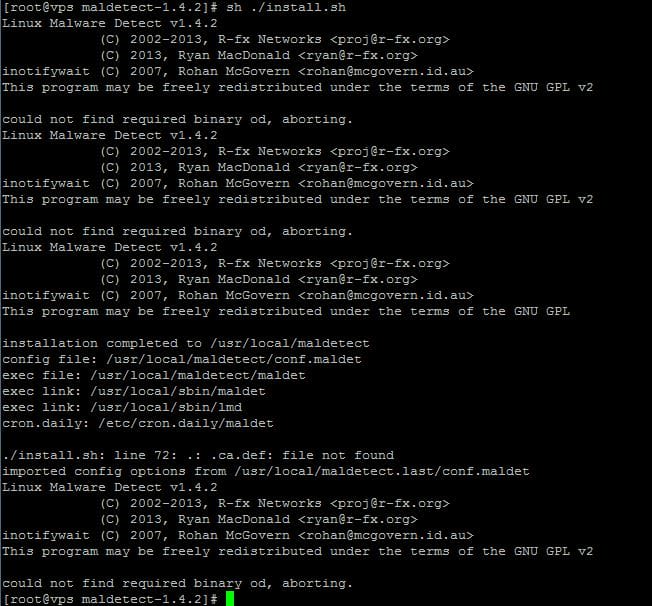
I recently ran into a problem with installing Maldetect on a CentOS system. I almost gave up until I discovered that one of my sites had a malware so decided to dig in further and try to resolve the issue. After downloading and running the install bash file, I received the error message “could not find required binary od, aborting.” as shown below.


[root@vps maldetect-1.4.2]# sh ./install.sh
Linux Malware Detect v1.4.2
(C) 2002-2013, R-fx Networks <proj@r-fx.org>
(C) 2013, Ryan MacDonald <ryan@r-fx.org>
inotifywait (C) 2007, Rohan McGovern <rohan@mcgovern.id.au>
This program may be freely redistributed under the terms of the GNU GPL v2

could not find required binary od, aborting.
Linux Malware Detect v1.4.2
(C) 2002-2013, R-fx Networks <proj@r-fx.org>
(C) 2013, Ryan MacDonald <ryan@r-fx.org>
inotifywait (C) 2007, Rohan McGovern <rohan@mcgovern.id.au>
This program may be freely redistributed under the terms of the GNU GPL v2

could not find required binary od, aborting.
Linux Malware Detect v1.4.2
(C) 2002-2013, R-fx Networks <proj@r-fx.org>
(C) 2013, Ryan MacDonald <ryan@r-fx.org>
inotifywait (C) 2007, Rohan McGovern <rohan@mcgovern.id.au>
This program may be freely redistributed under the terms of the GNU GPL

installation completed to /usr/local/maldetect
config file: /usr/local/maldetect/conf.maldet
exec file: /usr/local/maldetect/maldet
exec link: /usr/local/sbin/maldet
exec link: /usr/local/sbin/lmd
cron.daily: /etc/cron.daily/maldet

./install.sh: line 72: .: .ca.def: file not found
imported config options from /usr/local/maldetect.last/conf.maldet
Linux Malware Detect v1.4.2
(C) 2002-2013, R-fx Networks <proj@r-fx.org>
(C) 2013, Ryan MacDonald <ryan@r-fx.org>
inotifywait (C) 2007, Rohan McGovern <rohan@mcgovern.id.au>
This program may be freely redistributed under the terms of the GNU GPL v2

could not find required binary od, aborting.
After trying to debug the issue and even looking at the code, the script was trying to download files using wget and I was pretty confident the wget tool was installed.
After numerous attempts the fix was to install which as shown below:
yum install which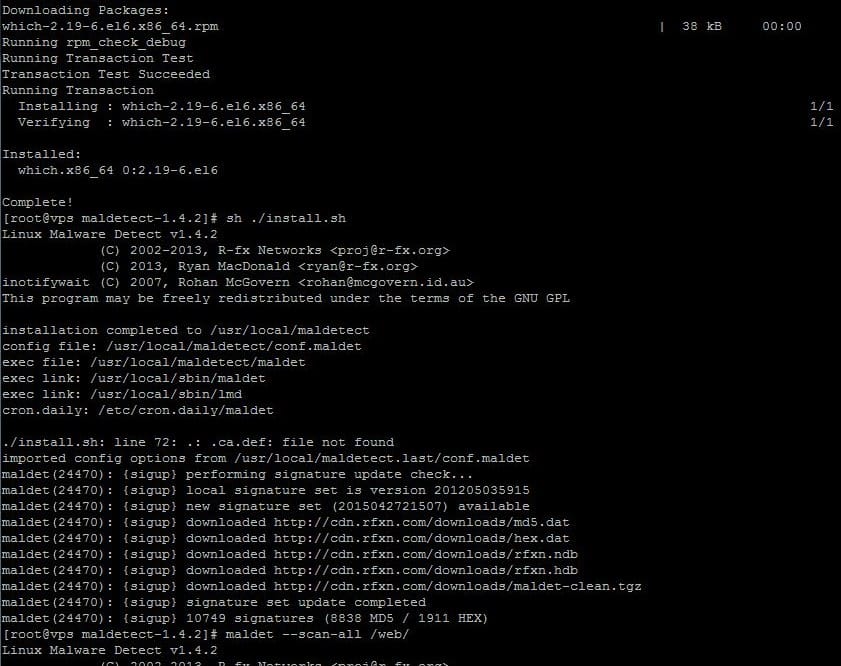
Apparently this install package uses the which command – the purpose of this command is to search the user’s path for a program file or shows the full path of the shell commands found. So after installing the which package I was able to run the install.sh file from Maldetect successfully.
Below are some of the commands that I’ve used:
Scan – maldet –scan-all /web/
View Scan report – maldet –report
Quarantine from Report – maldet -q 050715-2222.26127
Clean from Report – maldet -n 050715-2222.26127
Ignore file extensions
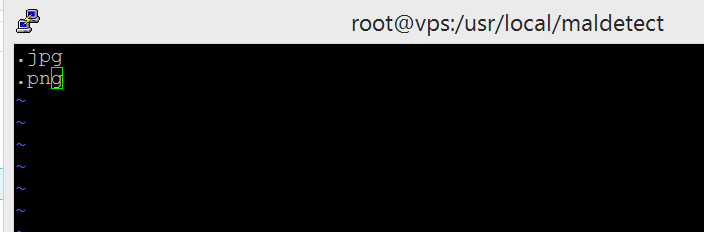
Now some of my website has quite a number of images and it does take up a considerable amount of time if maldetect were to scan these. I decided to just ignore these images file extension by adding some syntax to the ignore_file_ext file.
Edit the file /usr/local/maldetect/ignore_file_ext
add the following: .jpg .png
There are also options to automatically send emails and clean and quarantine infected files. To do this you need to modify the file located here:
/usr/local/maldetect/conf.maldet
In that file just modify a few lines:
email_alert=1 – This will enable email alerts
email_addr=”user@emailaddress.com” – Enter the email address to send the alerts to
quar_hits=1 – Move the detected malware to quarantine and then send an alert to the above address
quar_clean=1 – Try to clean the detected malware injections

Marco / admin / 30 Nov
Writing day to day ramblings about making money, business, technology, sharing awesome deals and everything else that I know I'll forget. Follow my personal blog https://marcotran.com.au
I've recently also turned Vegan and started this website Veggie Meals - check it out
"When technology speaks for itself, that is art" - MT
Affiliate Compensated: there are some articles with links to products or services that I may receive a commission.
OTHER ARTICLES YOU MAY LIKE

USE FUSEBASE TO AUTOMATE TEAMWORK AND COLLABORATION
If your business is growing, your team is juggling too many moving parts, and your client communication is spread across email threads, chat apps, documents, task boards, and endless follow ups, there is a good chance the real problem is not effort but fragmentation. Most businesses do not lose time because people are lazy. They […]
read more
USING REAP FOR VIDEO CLIPS
Short form video is now one of the most effective ways to reach new audiences, grow brand awareness, and turn long form content into a steady stream of social media assets. For creators, marketers, consultants, educators, and business owners, the challenge is rarely a lack of content. The real problem is time. Editing long videos […]
read more