Using Screencapture IcyScreen in batch file
June 8, 2015 / by Marco / Categories : Technology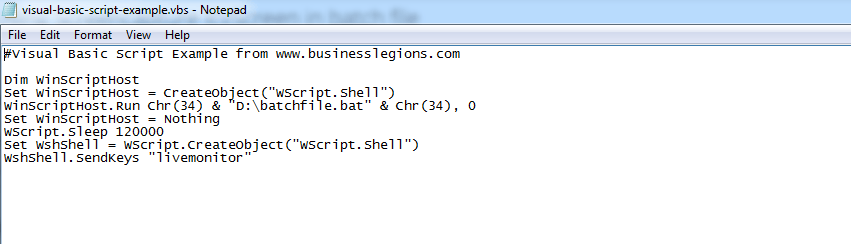
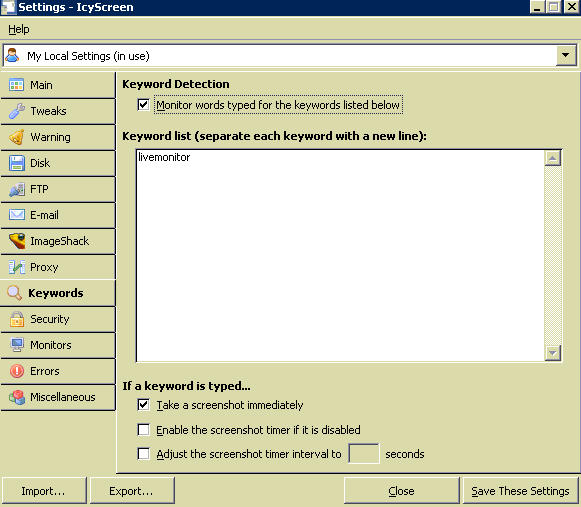
Several posts ago I mentioned about a tool that I use called IcyScreen to capture screenshots of a monitoring system that I use for work. You can read this here: Automatic Screenshots using IcyScreen. I setup IcyScreen to capture the screen at an interval of 30 minutes, however, I found that this was not the best setup because the capture would often miss an important event. After several discussions with the team at IcyScreen (great support by the way), we came to a solution. Initially, I had the idea to write a visual basic script to run a batch file to start the monitoring software and then send the Print Screen command. Unfortunately, this was not possible with Visual Basic so the alternative was to setup the IcyScreen software with the Keyword Detection feature. So if a keyword is typed e.g “livemonitor”, it would take a screenshot. So combining this feature and creating a Visual Basic script solved the problem. See below for the VBS code.
The Visual Basic Code


Download Example

Script Explanation
Part 1 – run batch file silently
Dim WinScriptHost
Set WinScriptHost = CreateObject("WScript.Shell")
WinScriptHost.Run Chr(34) & "D:\batchfile.bat" & Chr(34), 0
Set WinScriptHost = Nothing
The first 4 lines is used to run a batch file called batchfile.bat located on the D: of my computer. When this part of the visual basic script is executed, the command prompt run but it is not actually displayed at all i.e it run silently in the background.
Part 2 – Pause
WScript.Sleep 120000
The script then waits for 120 seconds (2 minutes) before it runs the next section. Note that this is in milliseconds. I decided to put this in because it would take about 30 seconds for the tool to load completely and wanted to make sure it runs before it takes a screenshot.
Part 3 – Send keyword keys
Set WshShell = WScript.CreateObject("WScript.Shell")
WshShell.SendKeys "livemonitor"
This part of the script sends the live monitoring keyword “livemonitor” (it’s like typing the keyword on the keyboard) so that the IcyScreen software can detect it and then take the screen capture.
IcyScreen Software – Awesome software to take screen captures
Example Visual Basic Script

Marco / admin / 30 Nov
Writing day to day ramblings about making money, business, technology, sharing awesome deals and everything else that I know I'll forget. Follow my personal blog https://marcotran.com.au
I've recently also turned Vegan and started this website Veggie Meals - check it out
"When technology speaks for itself, that is art" - MT
Affiliate Compensated: there are some articles with links to products or services that I may receive a commission.
OTHER ARTICLES YOU MAY LIKE

USE FUSEBASE TO AUTOMATE TEAMWORK AND COLLABORATION
If your business is growing, your team is juggling too many moving parts, and your client communication is spread across email threads, chat apps, documents, task boards, and endless follow ups, there is a good chance the real problem is not effort but fragmentation. Most businesses do not lose time because people are lazy. They […]
read more
USING REAP FOR VIDEO CLIPS
Short form video is now one of the most effective ways to reach new audiences, grow brand awareness, and turn long form content into a steady stream of social media assets. For creators, marketers, consultants, educators, and business owners, the challenge is rarely a lack of content. The real problem is time. Editing long videos […]
read more